When I first started programming in Excel VBA, I had problems using Class modules. I had done plenty of reading on Object Oriented programming, but I just didn’t understand the attraction. Years of programming in assembly language had wired my brain in a way incompatible with OO and every time I tried to use Classes and Collections, I quickly became frustrated and reverted back to my old ways.
My ways consisted of modules of Functions, and managing “lists of things” using Arrays and User Defined Types.
I suppose it had to happen at some time, but eventually it all clicked and now I want to use this approach for every programming assignment I take on.
For this article, we’re going to create a collection of People, and write code dealing with those people.
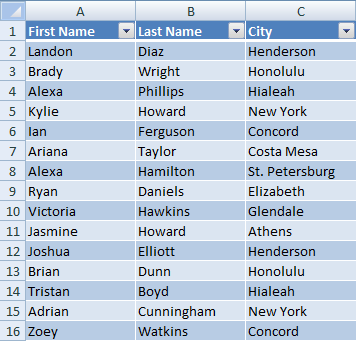
Start off with a blank workbook, and add a 3 column list of people: First Name, Last Name, City.
I used Dick’s Generate Sample Data add-in to build a list of 50 people.
I copy-pasted the first 10 cities against the remaining rows just so there are many people for any one city.
Later on in the post I’ve made an assumption that the list contents start on row 2 so please construct your layout so it appears like the screenshot.
Add a Class Module called Person.
Copy-Paste the following code in:
|
|
Option Explicit Public FirstName As String Public LastName As String Public City As String |
The next step is to add a Custom Collection Class. It’s really just a wrapper around the built-in Collection class. I use this as a Template, and search-replace Person / People.
I wish it were as easy as dropping the code into a new Class module, but you’ll need to do this little workaround instead.
You see, we need a few Attribute modifiers to alter the behaviour of two important properties, and it’s not possible to edit Attribute modifiers from VBA’s User Interface.
If you didn’t attach the Attribute modifiers, the Item property would not be the default property, and you would lose the ability to For Each / Next on the Collection.
So, using Notepad, save the following code as People.cls, then from VBA > File > Import File, and import People.cls.
1 2 3 4 5 6 7 8 9 10 11 12 13 14 15 16 17 18 19 20 21 22 23 24 25 26 27 28 29 30 31 32 33 34 35 36 37 38 39 40 41 42 43 44 45 46 |
VERSION 1.0 CLASS BEGIN MultiUse = -1 'True End Attribute VB_Name = "People" Attribute VB_GlobalNameSpace = False Attribute VB_Creatable = False Attribute VB_PredeclaredId = False Attribute VB_Exposed = False Option Explicit Private objPeople As Collection Private Sub Class_Initialize() Set objPeople = New Collection End Sub Private Sub Class_Terminate() Set objPeople = Nothing End Sub Public Property Get NewEnum() As IUnknown Attribute NewEnum.VB_UserMemId = -4 Attribute NewEnum.VB_MemberFlags = "40" Set NewEnum = objPeople.[_NewEnum] End Property Public Sub Add(obj As Person) objPeople.Add obj End Sub Public Sub Remove(Index As Variant) objPeople.Remove Index End Sub Public Property Get Item(Index As Variant) As Person Attribute Item.VB_UserMemId = 0 Set Item = objPeople.Item(Index) End Property Property Get Count() As Long Count = objPeople.Count End Property Public Sub Clear() Set objPeople = New Collection End Sub |
We’ll need a way of filling the Collection. I like adding a method to the Collection class called FillFromXYZ where XYZ could be a Sheet, or a Database, or an XML source, or anything really.
Add this code to the end of the People class
|
|
Public Sub FillFromSheet(wks As Worksheet) Const cFirstRow = 2, cFirstNameCol = 1, cLastNameCol = 2, cCityCol = 3 Dim i As Long, obj As Person With wks For i = cFirstRow To .Cells(Rows.Count, 1).End(xlUp).Row Set obj = New Person obj.FirstName = .Cells(i, cFirstNameCol) obj.LastName = .Cells(i, cLastNameCol) obj.City = .Cells(i, cCityCol) Me.Add obj Next End With End Sub |
Great! We’ve got all the ingredients readied for some testing.
We can loop through all of items in a list using For Each / Next
Insert a new Standard Module, and copy-paste this code in, then run it.
|
|
Sub test() Dim ppl As People, per As Person Set ppl = New People ppl.FillFromSheet ActiveSheet Debug.Print "Test 1: return all People" For Each per In ppl Debug.Print per.FirstName; vbTab; per.LastName; vbTab; per.City Next End Sub |
We can select a specific item in the list, accessed by Index number
|
|
Debug.Print "Test 2: return a single Person" Debug.Print ppl(2).FirstName; vbTab; ppl(2).LastName; vbTab; ppl(2).City |
We can filter the list by criteria
Add this code to the end of the People class …
|
|
Public Function FilterByCity(str As String) As People Dim ppl As People, per As Person Set ppl = New People For Each per In Me If per.City = str Then ppl.Add per Next Set FilterByCity = ppl End Function |
… then run Test 3
|
|
Debug.Print "Test 3: return all People of a specific City" For Each per In ppl.FilterByCity("New York") Debug.Print per.FirstName; vbTab; per.LastName; vbTab; per.City Next |
I suppose the thing I like the most about custom collection classes is the ability to do Method Chaining (methods of a collection that return a collection of the same class)
Here’s how we can link Filter methods together.
Add this code to the end of the People class …
|
|
Public Function FilterByLastNameLike(str As String) As People Dim ppl As People, per As Person Set ppl = New People For Each per In Me If per.LastName Like str Then ppl.Add per Next Set FilterByLastNameLike = ppl End Function |
… then run Test 4
|
|
Debug.Print "Test 4: return all People of a specific city and similar name" For Each per In ppl.FilterByCity("Athens").FilterByLastNameLike("*h*") Debug.Print per.FirstName; vbTab; per.LastName; vbTab; per.City Next |
We could go further with options like adding an OrderBy function:
|
|
For Each per In ppl.FilterByCity("Athens").FilterByLastNameLike("*h*").OrderByLastName |
or returning arrays, or lists of unique entries
|
|
str() = ppl.FilterByLastNameLike("*h*").UniqueCities |
By using Custom Collection Classes, it allows me to program against lists within the comfort of VBA.
It takes a little bit more set up to begin with, but allows the production of elegant code at the end.