When I first started programming in Excel VBA, I had problems using Class modules. I had done plenty of reading on Object Oriented programming, but I just didn’t understand the attraction. Years of programming in assembly language had wired my brain in a way incompatible with OO and every time I tried to use Classes and Collections, I quickly became frustrated and reverted back to my old ways.
My ways consisted of modules of Functions, and managing “lists of things” using Arrays and User Defined Types.
I suppose it had to happen at some time, but eventually it all clicked and now I want to use this approach for every programming assignment I take on.
For this article, we’re going to create a collection of People, and write code dealing with those people.
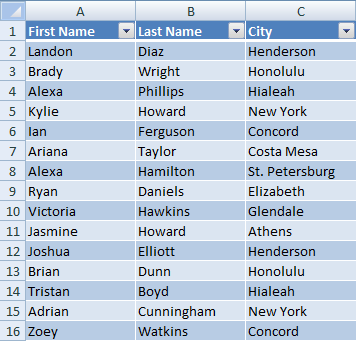
Start off with a blank workbook, and add a 3 column list of people: First Name, Last Name, City.
I used Dick’s Generate Sample Data add-in to build a list of 50 people.
I copy-pasted the first 10 cities against the remaining rows just so there are many people for any one city.
Later on in the post I’ve made an assumption that the list contents start on row 2 so please construct your layout so it appears like the screenshot.
Add a Class Module called Person.
Copy-Paste the following code in:
|
1 2 3 4 5 |
Option Explicit Public FirstName As String Public LastName As String Public City As String |
The next step is to add a Custom Collection Class. It’s really just a wrapper around the built-in Collection class. I use this as a Template, and search-replace Person / People.
I wish it were as easy as dropping the code into a new Class module, but you’ll need to do this little workaround instead.
You see, we need a few Attribute modifiers to alter the behaviour of two important properties, and it’s not possible to edit Attribute modifiers from VBA’s User Interface.
If you didn’t attach the Attribute modifiers, the Item property would not be the default property, and you would lose the ability to For Each / Next on the Collection.
So, using Notepad, save the following code as People.cls, then from VBA > File > Import File, and import People.cls.
|
1 2 3 4 5 6 7 8 9 10 11 12 13 14 15 16 17 18 19 20 21 22 23 24 25 26 27 28 29 30 31 32 33 34 35 36 37 38 39 40 41 42 43 44 45 46 |
VERSION 1.0 CLASS BEGIN MultiUse = -1 'True End Attribute VB_Name = "People" Attribute VB_GlobalNameSpace = False Attribute VB_Creatable = False Attribute VB_PredeclaredId = False Attribute VB_Exposed = False Option Explicit Private objPeople As Collection Private Sub Class_Initialize() Set objPeople = New Collection End Sub Private Sub Class_Terminate() Set objPeople = Nothing End Sub Public Property Get NewEnum() As IUnknown Attribute NewEnum.VB_UserMemId = -4 Attribute NewEnum.VB_MemberFlags = "40" Set NewEnum = objPeople.[_NewEnum] End Property Public Sub Add(obj As Person) objPeople.Add obj End Sub Public Sub Remove(Index As Variant) objPeople.Remove Index End Sub Public Property Get Item(Index As Variant) As Person Attribute Item.VB_UserMemId = 0 Set Item = objPeople.Item(Index) End Property Property Get Count() As Long Count = objPeople.Count End Property Public Sub Clear() Set objPeople = New Collection End Sub |
We’ll need a way of filling the Collection. I like adding a method to the Collection class called FillFromXYZ where XYZ could be a Sheet, or a Database, or an XML source, or anything really.
Add this code to the end of the People class
|
1 2 3 4 5 6 7 8 9 10 11 12 13 14 |
Public Sub FillFromSheet(wks As Worksheet) Const cFirstRow = 2, cFirstNameCol = 1, cLastNameCol = 2, cCityCol = 3 Dim i As Long, obj As Person With wks For i = cFirstRow To .Cells(Rows.Count, 1).End(xlUp).Row Set obj = New Person obj.FirstName = .Cells(i, cFirstNameCol) obj.LastName = .Cells(i, cLastNameCol) obj.City = .Cells(i, cCityCol) Me.Add obj Next End With End Sub |
Great! We’ve got all the ingredients readied for some testing.
We can loop through all of items in a list using For Each / Next
Insert a new Standard Module, and copy-paste this code in, then run it.
|
1 2 3 4 5 6 7 8 9 10 |
Sub test() Dim ppl As People, per As Person Set ppl = New People ppl.FillFromSheet ActiveSheet Debug.Print "Test 1: return all People" For Each per In ppl Debug.Print per.FirstName; vbTab; per.LastName; vbTab; per.City Next End Sub |
We can select a specific item in the list, accessed by Index number
|
1 2 |
Debug.Print "Test 2: return a single Person" Debug.Print ppl(2).FirstName; vbTab; ppl(2).LastName; vbTab; ppl(2).City |
We can filter the list by criteria
Add this code to the end of the People class …
|
1 2 3 4 5 6 7 8 9 10 |
Public Function FilterByCity(str As String) As People Dim ppl As People, per As Person Set ppl = New People For Each per In Me If per.City = str Then ppl.Add per Next Set FilterByCity = ppl End Function |
… then run Test 3
|
1 2 3 4 |
Debug.Print "Test 3: return all People of a specific City" For Each per In ppl.FilterByCity("New York") Debug.Print per.FirstName; vbTab; per.LastName; vbTab; per.City Next |
I suppose the thing I like the most about custom collection classes is the ability to do Method Chaining (methods of a collection that return a collection of the same class)
Here’s how we can link Filter methods together.
Add this code to the end of the People class …
|
1 2 3 4 5 6 7 8 9 10 |
Public Function FilterByLastNameLike(str As String) As People Dim ppl As People, per As Person Set ppl = New People For Each per In Me If per.LastName Like str Then ppl.Add per Next Set FilterByLastNameLike = ppl End Function |
… then run Test 4
|
1 2 3 4 |
Debug.Print "Test 4: return all People of a specific city and similar name" For Each per In ppl.FilterByCity("Athens").FilterByLastNameLike("*h*") Debug.Print per.FirstName; vbTab; per.LastName; vbTab; per.City Next |
We could go further with options like adding an OrderBy function:
|
1 |
For Each per In ppl.FilterByCity("Athens").FilterByLastNameLike("*h*").OrderByLastName |
or returning arrays, or lists of unique entries
|
1 |
str() = ppl.FilterByLastNameLike("*h*").UniqueCities |
By using Custom Collection Classes, it allows me to program against lists within the comfort of VBA.
It takes a little bit more set up to begin with, but allows the production of elegant code at the end.
Hi Rob,
This is truly awesome, after the Class is creates the other VBA code is clean.
Is it possible to add explanations of exactly what you have done, I have been trying to learn about Classes and even wrote a couple of rather insignificant ones, so would really appreciate a breakdown of what you are doing.
I note that there is no LET in you Class, I always thought that it was a pre-requisite.
Thank you very much for this post.
Cheers
kanti
Thank you for your excellent post! but,
“You see, we need a few Attribute modifiers to alter the behaviour of two important properties, and it’s not possible to edit Attribute modifiers from VBA’s User Interface.
If you didn’t attach the Attribute modifiers,”
About above saying, I feel difficult to understanding, could you let me know where can i get more detail explaination?
Hi Rob,
I’d de-couple the “fill data into the collection class” logic from the data source by -for example- passing a variant array with the data to the class instead of e.g. a worksheet.
The class then needs something like:
Public Sub FillRecords()
Dim lRow As Long
For lRow = LBound(Data, 1) + 1 To UBound(Data, 1)
‘Assuming first row contains header (hence the +1),
‘can be used to determine which column contains which data
Set obj = New Person
obj.FirstName = Data(lRow, 1)
obj.LastName = Data(lRow, 2)
obj.City = Data(lRow, 3)
Me.Add obj
Next
End Sub
Public Property Get Data() As Variant
Data = mvData
End Property
Public Property Let Data(ByVal vData As Variant)
mvData = vData
FillRecords
End Property
Please, not more arrays! :P
If I want to extract data from second source, then I’ll just build another FillFromXYZ method.
For example, both FillFromSheet() and FillFromDatabase() would exist in the same Collection Class
Dim ppl As People, per As Person
Set ppl = New People
‘ ppl.FillFromSheet ActiveSheet
ppl.FillFromDatabase
…
Const cConnectionString = “Provider=Microsoft.Jet.OLEDB.4.0;Data Source=D:Northwind.mdb”
Dim con As ADODB.Connection, rst As ADODB.Recordset, obj As Person
Set con = New ADODB.Connection
con.Open cConnectionString
Set rst = con.Execute(“select firstname, lastname, city from employees”)
Do Until rst.EOF
Set obj = New Person
obj.FirstName = rst(“firstname”)
obj.LastName = rst(“lastname”)
obj.City = rst(“city”)
Me.Add obj
rst.MoveNext
Loop
End Sub
Rob,
Good to see that you cover filter lists of the collection, an area I rarely see covered in the ubiquitous Employee class example, but one that really extends its usefulness IMO.
I tend to make the Like and Equal filters one function and check whether the Like operator is being used, like so
Public Function FilterByCity(str As String) As People
Dim ppl As People, per As Person
Set ppl = New People
If InStr(str, “*”) > 0 Then
For Each per In Me
If per.City Like str Then ppl.Add per
Next
Else
For Each per In Me
If per.City = str Then ppl.Add per
Next
End If
Set FilterByCity = ppl
End Function
Rob,
As you, I’m also trying to pass on object-oriented programming, so it has been interesting for me to learn the example.
I imported the code and tried to run it, but the code failed in the line as follows (in the Sub test):
For each per in ppl
The error message is: “Object doesn’t support this property or method”.
What’s wrong? Can you provided the fully functional downloadable workbook file with this example?
My e-mail is: yshindin@yandex.ru
Regards, Yuri.
You can download mine if you wish http://www.xldynamic.com/examples/classes/Collection%20Class.xlsm
It is not exactly the same as Rob’s, but very similar with all of the salient pints. I added a chained list today as Rob has in his examples.
Kanti: I don’t see the point of traditional public property get/set if only to set a private variable. It tends to be a bit tidier in Intellisense too.
amolin: I suppose it was a bit confusing. All you need to do is paste the code into Notepad, save it as People.cls, then use VBA to import People.cls.
Bob: yes, a good idea about searching a wildcard. There’s a typo in the link above – missing an A in exAmples
Yuri: I wonder if you just copied the code straight into the Class Module. You’ll have to do the workaround as described to amolin above.
I’ll put something together tonight and send it off to your email.
Fixed link.
Can you use Like and not use equal? What’s the downside to that?
?”Kusleika” = “Kusleika”
True
?”Kusleika” Like “Kusleika”
True
In other words, don’t test, just use Like. I’m sure there’s some gotcha there, but I can’t think of it.
An ever-so-slight performance hit. I’m geting 5644 versus 6529 for 100 million runs.
Dim lngStart As Long
Sub Start()
lngStart = timeGetTime()
End Sub
Function Finish()
Finish = timeGetTime() – lngStart
End Function
Sub test()
Dim i As Long, bln As Boolean
Start
For i = 1 To 100000000
bln = “Kusleika” = “Kusleika”
Next
Debug.Print “Test 1: “ & Finish
Start
For i = 1 To 100000000
bln = “Kusleika” Like “Kusleika”
Next
Debug.Print “Test 2: “ & Finish
End Sub
Rob,
You have a Get function which uses the index of the collection, but what I often find useful is in using unique keys to retrieve values. Is that useful here? (I beleive Bob has used keying to establsh his collection, but no reteival demonstrated)
P.S. I think VBA is like high school for me. I keep skipping classes.
Bob Phillips: Thank you for your example. I downloaded it and run in 2003 format.
What I can’t understand is the following code in the Users class:
Function NewEnum() As IUnknown
Set NewEnum = mcUsers.[_NewEnum]
End Function
If I delete (comment) the function, the ‘Sub MyUsers’ fails to run (with the same message: “Object doesn’t support this property or method”). When I uncomment the code, the message still displays.
My questions are:
1. What this function (NewEnum) is intended for and what does it do?
2. Why uncommenting does not help?
Regards, Yuri
Rob: My sole reason for a variant array is obvious: it is the fastest variable type to get data from a worksheet. Other than that I agree, arrays are not convenient to work with.
“I don’t see the point of traditional public property get/set if only to set a private variable.”
Isn’t that going against best practice? Or am I misunderstanding.
Amolin –
Long explanation here on default members of a class:
http://www.cpearson.com/excel/DefaultMember.aspx
…mrt
Rob –
I thought(?) to use “For each” in a collection, it had to be a collection of variants. Which is why I would use For i = 1 to collection.count instead when not using variants.
Do you know the “real rules”? Thanks.
…mrt
For Each on Collections work for Variants or Objects
Anything else and you get an error: “For Each control variable must be Variant or Object”
Dim col As Collection, str As String
Set col = New Collection
str = “abc”
col.Add str
str = “def”
col.Add str
For Each str In col ‘compile-time error
Debug.Print str
Next
End Sub
JP: That’s what I’ve always said. But if it truly is just retrieving a variable, I’m struggling to think of the downside to just using Public other than consistency maybe.
Dick: Sounds like lazy programming (which of course I am guilty of from time to time). It only takes a few extra seconds to write the proper code. You should be controlling the way your classes are accessed, since you don’t know who will be using them. Otherwise, why bother forming good habits at all?
Rob,
This is a fantastic post. I’m also forcing myself to learn about classes, and this is great. I think I’ve read through it about five times. Any more examples would be most welcome.
Josh
JoshG: another example is coming this week.
JP: I also understand it to be best practice. It’s the way I’ve been taught, but I’ve also been taught to question my assumptions.
And since VBA is end of life, I reckon that gives us a ticket to abuse the language how we want.
In C# we get to do this:
which is a shortcut introduced in (I think) C# 3.
As a whole, it’s fairly low regret. I mean, if you really needed to public/private it, then it’s a simple matter to convert it back and it’ll compile up right away.
When using the “For Each…” method of iterating through the collection, how would you remove the object from the collection? I can’t seem to be able to obtain the index of the object.
If Record.Fund = 5 Then Ledger.Remove( ??? )
Next Record
Jeremy: This area of the collection class is pretty weak. You’re forced to use an index to remove the item from the collection.
I don’t really like using an index, but the internal collection class (which we wrap) insists on it.
Someone here might come up with a better solution for the Remove method.
Below is an example working with the existing collection.
Note I’m working through the collection backward to preserve the index “i” in the for next loop.
Dim ppl As People, per As Person, i As Long
Set ppl = New People
ppl.FillFromSheet ActiveSheet
Debug.Print ppl.Count
For i = ppl.Count To 1 Step -1
Set per = ppl(i)
If per.City = “Honolulu” Then ppl.Remove i
‘If ppl(i).City = “Honolulu” Then ppl.Remove i
Next
Debug.Print ppl.Count
End Sub
Rob,
Thanks for your reply. I was hoping there was another way… going through a large collection (10,000+ items) in that manner takes an unacceptable amount of time compared to using the “For Each” method. Is that because of the “Set per = ppl(i)” line?
It could be because of the Set statement, I must admit
I included another line (commented out), so within the For Next bit, you could try that 1 line instead of the 2 lines.
Let me know how it goes?
Jeremy: As you might guess, I don’t “Remove” items all that often. If I remove records, it’s just one or two.
I had another look, and .Remove is really slow! For 10,000 records it took about 2 seconds. For 20,000 records it took 10 seconds, so my guess is that it’ll get impossibly slow for any more records.
I created a .FilterByNotCity method, and it returned under a second, even for 100,000 records.
So, if you want to remove lots of records, it’s faster to create a new collection with the wanted items of the original collection.
eg.
Dim ppl As People, per As Person
Set ppl = New People
For Each per In Me
If per.City <> str Then ppl.Add per
Next
Set FilterByNotCity = ppl
End Function
…
Set ppl = ppl.FilterByNotCity(“Honolulu”)
Rob,
Why Don’t you just use a For … Next loop in a remove by key function
I just tested with my class and about 20,000 records, and I looped looking for a record with a specific role (the 19,983rd member) and I got these results
Test: 1.515625
Test1: 1.5625
Test2: 0.015625
Test used your Set approach
For i = 1 To mcUsers.Count
Set mpUser = mcUsers(i)
If mpUser.Role = “Joiner” Then
End If
Next i
Test1 didn’t use an explicit Set
For i = 1 To mcUsers.Count
If mcUsers(i).Role = “Joiner” Then
End If
Next i
and Test2 used For … Next
For Each mpUser In mcUsers
If mpUser.Role = “Joiner” Then
End If
Next mpUser
As you expose all properties of the Person class you can test any of them, and as it is so much faster, is there any arguement?
Rob, I look forward to your article on how to safely reference a parent object from a child object without causing a memory leak ;)
FWIW I often used a disconnected fabricated ADO recordset as container object (as an alternative to a VBA.Collection object) when there is a need to support filtering, sorting and output as array or string/clip, etc but you have to be prepared to lose For Each support.
Once one has used generics in C#.NET it can be funny looking back at these techniques ;)
Bob: Yes, For Each is forward only, so it makes sense that it’s fast. There is overhead moving the cursor i to the right point at each loop. That’s something I hadn’t considered until now – thanks!
Jamie: c# had some influence in the class approach I’ve taken, specifically the delegates feature. VBA is quite a limited language, but I reckon the simplicity is an asset, in terms of someone else being able to pick the code up and make modifications. I love c#, but there’s always a place in my heart for VBA.
Hi,
Pls help me.
i try to use macro to add row with last row formula paste in given row number. how to record that macro.
Rob,
I had another idea about the Remove by Attribute functionality.
You already have the ListBy’attribute’ filter functionality, so we can tap into that. All we need to do is to filter by the required attribute and get the Items collection, something like
Set mcUsers = Me.ListByRole(attribute, False).Items
Now if you are paying attention (), you will notice that that returns a collection that match the required attribute, whereas to remove those items we need to return a collection that do NOT match the required attribute. SO we just add an optional argument to the list methods to say ignore the supplied value rather than include it.
Works well, and re-uses existing functionality.
That’s a good suggestion, and in some ways better than the solution I commented above (July 08, 2010 at 10:29 pm)
An extension of this could be to add an Equality as a parameter.
For example:
EQ
NEQ
GT
GE
LT
LE
End Enum
…
Public Function FilterByCity(e As Equality, str As String) As People
Dim ppl As People, per As Person, bln As Boolean
Set ppl = New People
For Each per In Me
Select Case e
Case Equality.EQ: bln = per.City = str
Case Equality.NEQ: bln = per.City <> str
Case Equality.GT: bln = per.City > str
Case Equality.GE: bln = per.City >= str
Case Equality.LT: bln = per.City < str
Case Equality.LE: bln = per.City <= str
Case Else: bln = False
End Select
If bln Then ppl.Add per
Next
Set FilterByCity = ppl
End Function
…
Debug.Print “Test 3: return all People not in New York”
For Each per In ppl.FilterByCity(Equality.NEQ, “New York”)
Debug.Print per.FirstName; vbTab; per.LastName; vbTab; per.City
Next
Good suggestion? It borders on genius :) We had already discussed a better option than the one that you commented on, which was faster and used the For … Next structure. This goes one step further and uses the improved filtering functionality as well, which of course now uses For … Next.
The Equality option is good too, but I don’t like the phrase Equality for some reason. It needs a better name IMO
What is the most efficient way to extract unique entries of a particular property? Say for example, a list of unique first names. I’m currently using nested For…Next statements, but it seems like there has to be a better way.
Dim ppl As People, per As Person, uniqPer As Person, bln As Boolean
Set ppl = New People
For Each per In Me
bAdd = True
For Each uniqPer In ppl
If per.FirstName = UniqEnt.FirstName Then bln = False
Next uniqPer
If bln Then ppl.Add per
Next per
Set FilterUnique = ppl
End Function
You could add a new method to your People class that uses the unique characteristic as the key to the collection. You wouldn’t be able to access them by the normal key that you use (like PersonID or something), but if the scope is sufficiently limited in your app that shouldn’t be a problem.
On Error Resume Next
mcolPersons.Add clsPerson, CStr(clsPerson.FirstName)
End Sub
Public Property Get FilterUniqueFirstName() As CPersons
Dim i As Long
Dim clsReturn As CPersons
Set clsReturn = New CPersons
For i = 1 To Me.Count
clsReturn.AddUniqueByFirstName Me.Person(i)
Next i
Set FilterUniqueFirstName = clsReturn
End Property
Thanks Dick,
I suppose to expand on that, you could add a second loop which adds each member of the unique list to a final collection using the standard add method. Since the second loop would only occur once, I imagine the speed hit would be negligible. I changed the add unique to accept a variant for unique ID so I don’t need a separate sub for each unique filter.
On Error Resume Next
objPeople.Add clsPerson, CStr(vID)
End Sub
Public Function FilterUniqueFirstName() As People
Dim i As Long
Dim per As Person
Dim UniqPpl As People
Dim clsReturn As People
Set UniqPpl = New People
Set clsReturn = New People
For Each per In Me
UniqPpl.AddUniqueByProperty per, per.FirstName
Next per
For Each per In UniqPpl
clsReturn.Add per
Next per
Set FilterUniqueFirstName = clsReturn
End Function
To Jan’s point about using a variant array for speed, what is the purpose of creating the Data property vs. passing the array directly to the FillRecords sub?
Ooh, I like. You don’t need the second loop, though. Just use
at the end.
That brings up another question I had which is partially related. When building a custom object model, I wanted to be able to reference the objects in the collections in the same way they are referenced in the excel object model.
workbooks("Book1").worksheets("Sheet1").range("A1") My first inclination was to make the collections public. Then it occurred to me that I could just have a public property of an object which holds a collection. The second method seems cleaner and allows you to easily add multiple collections to a single object (i.e. worksheet has both range collections and OLE objects). My question is what are the best practices when creating an object model? If you do it with separate object and collection classes for everything, you end up w/ a huge number of classes in a hurry, but the code itself seems cleaner. Does it really make a difference?So back to the original idea, I used the second loop to preserve the normal key. I was trying to preserve the standard key so the object could be referenced w/o its index.
I make my collections global with hack that VBA seems to cope with ok.
It’s kind of like having a static variable.
In a Standard Module:
Public People as New PeopleIn the People Class
Private Sub Class_Initialize()Me.FillFromWorksheet("PeopleList")
End Sub
Now I can do stuff like
Set myPerson = People.FindByLastName("van Gelder") straight up without having to set up a People class and fill it.In this way, I sort of have a global way of accessing worksheet items through the beauty of an object model.
Updates made to worksheets could be an issue, but options come to mind...
1. extend the People class to handle worksheet change events from the PeopleList worksheet
2. expose a reset function to reload the data from the worksheet
@Bjacobowski: “extract unique entries of a particular property?”
You can shortcut your code by adding an Exit For at the point when Then bln = False.
For an alternative approach, which might be more ‘efficient’, is to use an ADO recordset’s Filter property e.g.
Set rs = New ADODB.Recordset
rs.Fields.Append “PersonID”, adInteger ‘ — unique key
rs.Fields.Append “FirstName”, adVarChar, 100 ‘ — matching criteria
rs.Fields.Append “is_match_candidate”, adBoolean ‘ — whether a match
rs.Open
Dim P As Person
For Each P In m_People
rs.Filter = “FirstName = ‘” & P.FirstName & “‘”
If rs.RecordCount = 0 Then
‘ Potential candidate
rs.AddNew Array(“PersonID”, “FirstName”, “is_match_candidate”), _
Array(P.Name, P.FirstName, True)
Else
‘ Former potential candidate now ruled out
rs.Fields(“is_match_candidate”).Value = False
End If
Next
rs.Filter = “is_match_candidate = True”
Dim returnPeople As People
Set returnPeople = New People
Dim counter As Long
For counter = 0 To rs.RecordCount – 1
returnPeople.Add m_People(rs.Fields(“PersonID”).Value)
rs.MoveNext
Next
@Bjacobowski: ‘I could just have a public property of an object which holds a collection’
Yes, that is the recommended approach.
‘you end up with a huge number of classes in a hurry’
Yes, they double up: every entity class has a collection class. But that collection class is basically a copy+paste job in a text editor: search+replace on the class name/plural name then import into the VBE.
The fun starts when you need to support interfaces e.g. the Sheets collection returns distinct concrete classes (Worksheet *and* DialogSheet instances) :)
“I used the second loop to preserve the normal key”
Ah, that makes sense.
hi. thanks, this saved me a lot of research! but, how can i add Intellisense for collection items? example:
Johny: It works for me…
As soon as I press the . in
Debug.Print ppl(1) it comes up with an Intellisense list of membersDim ppl As People
Set ppl = New People
Debug.Print ppl(1).
End Sub
An alternative to Custom Collection Classes http://bit.ly/epDoZB
Bob: I’ve experimented with ADO recordsets too. I think this has a lot of potential.
Bob and Rob:
Relating to my earlier post about hierarchies of classes, I think using Bob’s approach, perhaps in conjunction w/ Mike Alexander’s recordsets using SQL approach – http://datapigtechnologies.com/blog/index.php/recordset-tricks-in-excel-1-filling-a-combobox-with-unique-values/ – to do some of the filtering/aggregating/manipulating would result in much simpler code and probably better results. I haven’t built up the courage to actually try yet…
@Bjacobowski,
Check Jamie Collins’ latest comment back on my blog, that idea is really cooking the RecordSet.
Anyone have experience w/ the data shaping idea Jamie Collins proposes on Bob’s blog? Are there limitations/downside to using data shaping over a custom object model, other than the inability to create your own methods? Seems like the recordset hierarchy would be perfect if you’re only holding data. What about performance?
Rob,
I am trying to learn custom classes to create an object hierarchy and this post is extremely instructive and informative. When I attempt the “workaround” as suggested, ALL of the Attribute statements show in red text. I am a relative beginner in the VBA world and a total newb to custom classes. Is it possible for you to send me an explanation similar to the one that was sent in response to yuri’s comment on “July 5, 2010 at 7:20 am”
Thank you for revisiting this
Best Regards,
-JT-
My email is jasonisshining@gmail.com
This is what is showing up when I import the People.cls file
MultiUse = -1 ‘True <—– Red Text
End
Option Explicit
Private objPeople As Collection
Private Sub Class_Initialize()
Set objPeople = New Collection
End Sub
Private Sub Class_Terminate()
Set objPeople = Nothing
End Sub
Public Property Get NewEnum() As IUnknown
Attribute NewEnum.VB_MemberFlags = “40" <——- Red Text
Set NewEnum = objPeople.[_NewEnum]
End Property
Public Sub Add(obj As Person)
objPeople.Add obj
End Sub
Public Sub Remove(Index As Variant)
objPeople.Remove Index
End Sub
Public Property Get Item(Index As Variant) As Person
Set Item = objPeople.Item(Index)
End Property
Property Get Count() As Long
Count = objPeople.Count
End Property
Public Sub Clear()
Set objPeople = New Collection
End Sub
Rob van Gelder: re Remove and This area of the collection class is pretty weak.
I know this column is pretty old now, but it has helped me a lot and thought I would contribute a little.
If a fast Remove is important then consider changing the Add procedure:
Public Sub Add(obj As Person)
objPeople.Add obj
End Sub
to this:
Public Sub Add(obj As Person)
objPeople.Add obj, key
End Sub
The collection object has an optional Key, a unique value for for each object in your collection. For example EmployeeID or CustomerID
If you used the key version of add Remove is now almost instantaneous
objPeople.Remove key
Sorry, I don’t know how to paste code here.
Rob: I am familiar with VBA. However, I am not familiar with Classes, so I am in the process to learn, and I am trying to run the code shown by you in “Custom Collection Class”. I have imported the first code from the people.cls file. However the results and not correct, VBA is imorting just some part of the code and first lines are missing. Do you know if a library must be activated before doing the import process?
Note:
-I am using Excel 2010.
Thank you for your help.
Fabio
Hi Rob,
Again as other newbies have said your article is extremely informative (once you get paste the initiation JasonT refers too ;-) and has allowed me for the first time to explore object and collection based solutions. That said one of the bits right up front that had me hooked was the ability to be able to add an Order By function.
Any change you could post your code for this OrderBy function as I’m struggling on my own and this is the missing link.
Oh and I only seem to be able to chain two methods together, filterByX.FilterByY, as soon as I add …FilterByZ it falls over – Sure it’s something stupid I’ve done but if anyone else has had the same experience and resolved it please let me know the solution.
Many thanks,
Ed
@EdwardM, try
http://dailydoseofexcel.com/archives/2011/10/31/sorting-a-custom-collection-class/
or
http://dailydoseofexcel.com/archives/2004/06/02/sort-a-collection/
I believe that Attribute NewEnum.VB_MemberFlags = “40” is ignored by VBA.
@vba4all I agree. I added the hidden lines to my cls file, imported it into Excel and then exported it again, and the member flags line had been removed by the system.
@Jason_T, @vba4all, et.al.:
The problem with the code import is due to the character set of the blog, i.e. “smart quotes”. In your editor (I use Textpad instead of notepad), change the “‘” in “‘ True” and the ‘”‘ in ‘”40″‘ to the correct ASCII characters.
Once you do this the code import will work properly.
Hi All,
Is there a way to dynamically state by which property do I want to filter/sort/unique? ppl.FilterBy(City, “Tokio”).FilterBy(LastName,”Smith”).Unique(FirstName)
Without doing select case.
Thanks in advance,
Andrzej
No, at least not that I know of. You just have to write a bunch of filter properties, or as you said, use a select case.
@Andrzej
Have a look at CallByName
See http://stackoverflow.com/questions/2695198/calling-a-sub-or-function-contained-in-a-module-using-callbyname-in-vb-vba
You should be able to write a generic filter function in your custom collection class based around CallByName from the object class.
@James Brow
Thank you, works perfectly.
Hi,
I’m trying to enter and run this per Robs’ instructions but, when I try to run Test 1
I get “Run Time Error 438 – Object doesn’t support this prop or method” for the
‘For Each per In ppl” line.
I did enter the attribute and People class code into notebook then imported to VBA so, I think that was done correctly.
Any suggestions on how to attack this problem?
(BTW: I’m using Excel2013)
Thx,
grant
Grant: I think the blog post messed up some of the characters (like quotes). So if you copied and pasted into Notepad it wouldn’t work. I’ve reformatted the code so that it will preserve the quotes and tested it, so it should work now.
Hello,
It is past a few years and I came up with this post.
I’ve implemented everything as suggested.
The only issue I’ve found related to the number of elements.
I cannot seem to add more items than 256?
The count still increases to higher numbers but not the items and the objPeople items.
Can anyone confirm if this is also a problem on your side?
Any suggestion would be appreciated…
Thanks
I put 1,000 people in and didn’t have a problem. I uploaded my example here.
@Dick Kusleika: I’ve searched and realized that, only the debug mode (watch window) limits the items to 256, but the class can take as many as we need. I should have seen it. Sorry and thanks for the feedback.
Can I use the opportunity to ask something about the example?
I’m just curious if we can I have the base class (i.e. Person) with a property that from another class type. We see many examples where properties are strings/integers etc. but nothing with type class. Is this possible?
Please feedback. Thanks
Yes, I do that all the time. For instance in my golf league spreadsheet I have a CRound class that holds one round of golf. In that class I have a Golfer property that refers to a CGolfer class instance.
So I can refer to it like in this example
@Dick Kusleika: Thanks for the info.
I’ve tried to add a new property to your example (class “Person”) and called it “ExtraDetails” of type class “CExtraDetails” (new added class with just one property “Detail1” of type string). When I use the lines:
clsPerson.ExtraDetails.Details1 = "mydetails"fails with the error:“Run-time error ’91’: Object variable or With block variable not set”
Not sure why, but it might be related to the “CExtraDetails” not being initiated?
Don’t we need to set “as new” key words to the “subclass”?
I think I’m missing something.
Can you help?
Thanks
Regards,
You are correct that you need to instantiate
ExtraDetails. The way that I usually do that is inCPerson‘sClass_Initializeevent. That way whenever you create aCPerson, theExtraDetailsinstance will automatically be ready to go. For example, I have aCMatchclass that has aCRoundschild class. TheClass_Initializeevent inCMatchlooks likeHi, thanks for sharing this example, very insightful.
This functions:
Although the .count above is correct, the line below give an Error 91, and because the first “per” is pointing to a non-existent member in this filtered collection:
But if I do this:
It correctly iterates; of course I will use the second one, but why your example is it failing?
TIA
I don’t get an error 91 with that code.
Hi thank-you for this.
2 Questions:
1) Is there a way to know the index of the object in the collection?
For Each per In ppl
var = per.index()
Next
2) Is there a way to use the Filter logic whereby if you are filtering on say Cities that the loop only increments by the number of cities in that field?
For Each per In ppl.FilterByCity(“is-there-a-wildcard-you can-here-for-all-cities”)
Debug.Print per.FirstName; vbTab; per.LastName; vbTab; per.City
Next
Thanks again!
1) You can’t access the key in a collection. You could use a Scripting.Dictionary instead that allows you to return keys, but then you can’t enumerate.
2) You can change the function like
Now if you supply “All”, you’ll get every city.
Hi all,
Is there a way to hide the NewEnum member from Intellisense?
The class end user doesn’t need to see it, and it could be a bit confusing.
Thanks
I don’t think there’s any way to hide it.