In Creating CSV Files, I showed how to use the Save As dialog to create a text file from an Excel worksheet. Stephen flattered me in to expanding on that theme. If you have special needs when creating a CSV file, you can roll your own with VBA.
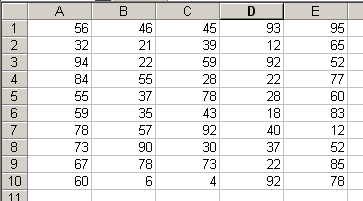
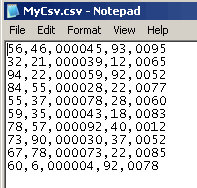
This example takes a worksheet with some numbers on it and creates a CSV file where certain columns have a specified width. It pads those columns with zeros if the length of the value is less than what’s required.
Sub CreateCSV()
Dim rCell As Range
Dim rRow As Range
Dim vaColPad As Variant
Dim i As Long
Dim sOutput As String
Dim sFname As String, lFnum As Long
Const sDELIM As String = “,”
‘Required width of columns
vaColPad = Array(0, 0, 6, 0, 4)
i = LBound(vaColPad)
‘Open a text file to write
sFname = “C:MyCsv.csv”
lFnum = FreeFile
Open sFname For Output As lFnum
‘Loop through the rows
For Each rRow In Sheet1.UsedRange.Rows
‘Loop through the cells in the rows
For Each rCell In rRow.Cells
‘If the cell value is less than required, then pad
‘it with zeros, else just use the cell value
If Len(rCell.Value) < vaColPad(i) Then
sOutput = sOutput & Application.Rept(0, _
vaColPad(i) – Len(rCell.Value)) & rCell.Value & sDELIM
Else
sOutput = sOutput & rCell.Value & sDELIM
End If
i = i + 1
Next rCell
‘remove the last comma
sOutput = Left(sOutput, Len(sOutput) – Len(sDELIM))
‘write to the file and reinitialize the variables
Print #lFnum, sOutput
sOutput = “”
i = LBound(vaColPad)
Next rRow
‘Close the file
Close lFnum
End Sub
Dim rCell As Range
Dim rRow As Range
Dim vaColPad As Variant
Dim i As Long
Dim sOutput As String
Dim sFname As String, lFnum As Long
Const sDELIM As String = “,”
‘Required width of columns
vaColPad = Array(0, 0, 6, 0, 4)
i = LBound(vaColPad)
‘Open a text file to write
sFname = “C:MyCsv.csv”
lFnum = FreeFile
Open sFname For Output As lFnum
‘Loop through the rows
For Each rRow In Sheet1.UsedRange.Rows
‘Loop through the cells in the rows
For Each rCell In rRow.Cells
‘If the cell value is less than required, then pad
‘it with zeros, else just use the cell value
If Len(rCell.Value) < vaColPad(i) Then
sOutput = sOutput & Application.Rept(0, _
vaColPad(i) – Len(rCell.Value)) & rCell.Value & sDELIM
Else
sOutput = sOutput & rCell.Value & sDELIM
End If
i = i + 1
Next rCell
‘remove the last comma
sOutput = Left(sOutput, Len(sOutput) – Len(sDELIM))
‘write to the file and reinitialize the variables
Print #lFnum, sOutput
sOutput = “”
i = LBound(vaColPad)
Next rRow
‘Close the file
Close lFnum
End Sub
The output looks like this
Dick: Wowgreat site (definitely over my head though). Maybe you can help: I’m a school teacher (and novice Excel user), and I’m trying to import my school’s roster into Harcourt’s Electronic Assessment program. Our roster is presently formatted in Excel; Harcourt requires it to be in an ASCII file. I’m not seeing ASCII as a possible Save As format. A colleague recommended I try saving as Text Tab delimited, and the Harcourt program at least recognizes it, but will not import it, because it says that there are too many characters for the first field. (The fields on Harcourt are ID, Name, and Password.) I think this format is cramming everything into the ID field, rather than dispersing along. Any guidance you can lend will be greatly appreciated. Thank you, Mark
Mark,
I’m not sure what ASCII format Harcourt is looking for in that particular software (ASCII is just another way of saying plain text). They may be looking for a comma delimited file. I would try the following to see if it will work for you:
1) save workbook as type “CSV (Comma delimited) (*.csv)”
2) change the resulting filename’s extension to .txt
If that doesn’t work, you could try PRN format, which is a “flat file” format (no delimiters, but a certain number of characters for each column of data in the text file – typically padded with spaces). But that one’s a bit trickier to work with, so try the CSV first.
Dick,
Thanks for this site. It helped me tremendously. I was able to create a macro that converted spreadsheet data to “.txt” file easy as 1-2-3. Now, the question is…Why can’t I get this macro to work on other PCs than my own. I installed the “personal.xls” macro sheet to the default XLSTART folder on several other machines, then fired up EXCEL. This macro opens a vb form which has 5 command buttons on it. Each button opens a new form. When the first command button is pressed, a second form opens up. However, when I hit the “Add” command button on this second form (while on other PCs from my own) the application aborts with a “compiler error, can’t find project or library”; and the debugger opens up to the code behind this second screen on the first line of code which is strleading = “”. Is there any modules or dlls that need to be present on the PC for a personal.xls macro to execute from within EXCEL? Any help would be greatly appreciated.
Thanks for this site, it has helped me a great deal.
Scott Sewell
512-427-6262
Hi all,
I’m locking also for a good solution for my users, using MS EXCEL to create csv files.
We need semicolons to Import Data.
But I’ve try it with OpenOffice. It so easy.
I would recommend to try in such cases with OO.
Regards
So is it just looking for an open file? If so can you export a csv from a specified file name without opening the file?
Thanks
UK
http://www.wthef.com
FYI – 2 Changes I had to make before this code would work on my machine.
1) Changed all 9 instances of ‘ to ‘
2) Changed “C:MyCsv.csv” to “C:MyCsv.csv”
Hi,
It was a neat trick to create the CSV. However I would like to know how to do the reverse. No the question is why I dont use Excel to import the file? Well what I need to do is create a CSV file from different sheets and import all the data into 1 sheet. Where each CSV file represents a specific group. And the data need to be populated in particular cells only.
Would be really nice to get some pointers on this.
Thanks
Hi,
I am looking for a script in VBA to first delete the first 10 rows, then extract the remaining used range in a csv format but the column widths should be exactly the same as the source file, I am not sure how I can define the column width in a csv file since all cells are only seperated by “,”. Please help…
Thanks.
Kaz: Usually you don’t have delimeters (like commas or tabs) and fixed-width columns. If each column is a prescribed width, why would you need the comma. Here’s a post on fixed-width that may be helpful
http://www.dailydoseofexcel.com/archives/2008/02/28/fixed-width-text-files/
Hi, I have an excel file that is in Traditional Chinese. When I convert to a CSV file, I lost all the chinese character as all are converted to “??????”. Is there any way I can overcome this? Thank you very much.
Hello,
Can the range that is converted to CSV be specified ??
The code above does exactly what I require, but I only want the first two columns (i.e. A & B) and from row 3 down.
Thanks for a great site
David: Change this line
to
Change the sheet’s codename and the range reference to whatever you want. If you don’t know how many rows there will be, you could use
Hi,
I am looking for a method to make a .CSV file with the “@” as the delimiter.
When i use the script in this example, i use first the F8-key for stepping through the program, and at the line “Open sFname For Output As lFnum” Excel gives me the error “file not found”.
Changing sFname = “C:MyCsv.csv” to sFname = “C:MyCsv.csv” does not help.
Can anyone help me out here?
Thanks in advance.
Anton: I reposted the code and added an sDELIM constant so you can delimit by any character you want. That should have any effect on your problem, though, as long as I was retesting it I thought I’d spruce it up. You should make sure you have the correct permissions to create file on the root drive. If you have Vista, you probably don’t have permission and you should choose a different location.
Howdy,
Out of interest, instead of padding out with zeroes based on column width, is there an easy way to add a “~”at the start and end of the text in each cell?
Along the lines of:
sOutput = Application.Rept(“~”,1) & sOutput & Application.Rept(“~”,1) & rCell.Value & sDELIM
Cheers, Stu
@Dick – I’m pretty sure you can replace these lines from your blog article’s For/Next loop…
‘it with zeros, else just use the cell value
If Len(rCell.Value) < vaColPad(i) Then
sOutput = sOutput & Application.Rept(0, vaColPad(i) – _
Len(rCell.Value)) & rCell.Value & sDELIM
Else
sOutput = sOutput & rCell.Value & sDELIM
End If
with this single line of code…
@Dick – Whoops! I forgot to include the delimiter in my last one-liner posting…
@Stuart – I think you are looking for this line of code (it replaces the entire If/Then/Else/EndIf block)…
sOutput = sOutput & “~” & rCell.Value & “~” & sDELIM
You’re absolutely right – Cheers for that : )
Out of interest, seeing as Windows 7 protects against saving files to the root of a drive, Would it be possible to replace the static filename and bring up a save as dialog box instead?
Nice information! Thank you so much.
I need to have my user select an excel file and then programatically resave the original excel file into a CSV format without excel every popping up it’s head.
In the end there would be 2 files, File1.xls and File1.CSV.
Is this possible without actually opening up excel? I just want to use its saveas feature. :)
Stuart: You need
Application.GetSaveAsFileName, which returns a string that has the full path to whatever the user enters. You can store that name in sFname and it should work like you want.David: You have a couple of options, neither of them easy IMO. You could make an Excel dictator app. That would open a new instance of Excel, but it wouldn’t look like Excel if you use the right settings. (See Professional Excel Development for how to create dictator apps).
The other option is a VB6 program that automates Excel. VBA and VB6 are pretty similar and you’d have GetOpenFilename because you’d have a reference to the Excel library.
hi everyone
can someone help me with the csv format im using the myob program i export the files to excel then save it using the csv format but every time i open the file some of the account number was converted to date format (e.g : account number is 1-2000 (excel) after saving it become jan 10. I try to change it manually and saving it all over again but same results . . how can i save the file without worrying of any changes
Angel: I’m sure there are better ways to do this but this is what works for me: Change the csv extension to txt then open the file in notepad. do a find..replace and replace – with the tilde character ~. Save the file. Rename it from .txt to .csv and now load it back in Excel. That’s one way of getting Excel to not convert your account numbers to dates.
Greg
This script is exactly what I have been looking for, however, when I run the script the C:MyCSV.CSV file is empty (I just copied in the code at the top of this page into an Excel module and ran it). It looks like it is creating the first field with a length of zero…and then finishing.
I seem to be the only person that is having this issue, so must be something I am doing wrong. Any ideas appreciated.
Cheers,
Detz.
98: The code references Sheet1, which is the codename for the sheet. Make sure Sheet1 in your workbook actually has some data. Or change the reference to the proper sheet’s codename.
Thanks, Dick
When working with long strings the code overhead can be significantly reduced by separating the concatenation of the short strings into a single string to be added separately to the long master string, ie
sOutput = sOutput & (Application.Rept(0, vaColPad(i) – _
Len(rCell.Value)) & rCell.Value & sDELIM)
When working with long strings the code overhead can be significantly reduced by separating the concatenation of the short strings into a single string to be added separately to the long master string, ie
Len(rCell.Value)) & rCell.Value & sDELIM)
One more issue – when I save this script to a module in my Personal.XLS (in the Excel Startup folder) and try to run it on a new Excel Workbook (i.e. Book1.XLS) it does not work and creates and empty file. I have verified that my worksheet within my Book1.XLS is called Sheet1.
If I was actually add this script to a module for Book1.XLS, it works just fine. Is there a statement that I need to add to my Personal.XLS module that will allow this script to run on other workbooks?
With Personal.xls as the active workbook, choose Window-Hide and then close Excel, answering Yes to the prompt to save Personal.xls
that should fix the issue you’re having.
Gave that a shot too, but still no dice (now there are no other Workbooks open except Book1). It will only run successfully when I run the macro specifically from the Book1 VBAProject.
Firstly thanks for giving so much of your time and and sharing your knowledge with us. I got here by a google search and I’m finding snippets of what I need here and there. Basically I’m using a workbook to enter data and use areas of the work book to make calculations and based on the entries.
In the coarse of my work I need to take data from one software system and enter it onto not one but several others. For many of the fields they are also transformed or formatted in someway before I can use them in the other software. I’ve made myself a sort of ‘pasteboard’ if you will that I use to paste the initial entries. My worksheets extrapolate the data I need to aste into the other programs.
So far I’ve been saving the entire workbook for each policy, which is absurd and far too weighty and wasteful. My goal is to only save one sheet as the data and be able to retrieve it again later. But not just one record. I want to store subseqent records also so I can look back over the policies I’ve done in the past. So each time a new record is entered I want to store it, it needs to go on the next free row on the ‘Data_Sheet’.So I’ve split my subs into;
StoreRecord() I will make a button which when pressed stores all the data entered on sheet1 on the first availabe row of the ‘DataSheet’ (So I need to know how to find the first available free row – or I will need a dialogue asking what row to save to)
ReloadRecord() With this I hope to repopulate the entry fields with previously stored record (row) from the DataSheet. I will likely need a dialogue or dropdown combobox to choose which record to be loaded.
SaveDataSheet() and LoadDataSheet() Idealy I’d like to offer a file save/load dialogue with this so I can choose a filename. I also want to overwrite the existing sheet with the newly loaded one and have it named ‘DataSheet’ so any macros still work for repopulating etc.
Sorry for being so long winded. Just thought I’d ask if you have any tips on any of these subs it would be a great time saver for me as it is all up hill from here.
Thanks again for a great site.
Hi Dick, Well there is a God after all. I’ve been bugging Microsoft about the inconsistencies of saving CSV file with and without macros in an attempt to create a text file using the pipe character “|” as a delimiter. This little gem of code, albiet 6 years old, solves all my problems and makes me very, very happy. Thanks so much.
In case anyone is looking for a solution to save multiple sheets of the same workbook as csv:
Dim rCell As Range
Dim rRow As Range
Dim sSheet As Worksheet
Dim vaColPad As Variant
Dim sOutput As String
Dim sFname As String, lFnum As Long
Const sDELIM As String = “,”
lFnum = FreeFile
For Each sSheet In ActiveWorkbook.Sheets
sFname = ActiveWorkbook.Path & “” & sSheet.Name & “.csv”
Open sFname For Output As lFnum
For Each rRow In sSheet.UsedRange.Rows
For Each rCell In rRow.Cells
sOutput = sOutput & CStr(rCell.value) & sDELIM
i = i + 1
Next rCell
sOutput = Left(sOutput, Len(sOutput) – Len(sDELIM))
Print #lFnum, sOutput
sOutput = “”
Next rRow
Close lFnum
Next sSheet
End Sub
Hey guys,
Have a problem… someone on another post wrote a similar question… how do I get excel to surround each value with QUOTES “” ? Any ideas, really need this…? THANK YOU ALL IN ADVANCE!
This is a truly splendid piece of code. i was in a tight spot with a job and time was running low. The code itself didn’t contain anything i haven’t used at some time in the past but the concept/thought process for the routine is great!
Massive help, cheers!!
Can Excel be used to create a pipe delimited output at a simple click, without the use of extra code or programming? If so, how do you do it for a single file and not all files from then on?