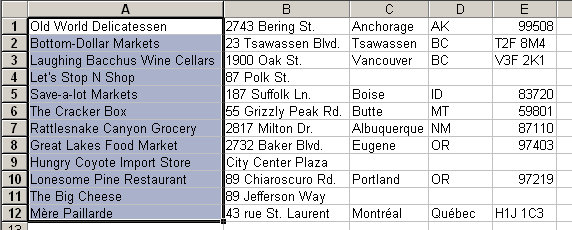
To separate text that’s in one column into many columns, use Text To Columns under the Data menu. This is often encountered when you copy data from another application. In this example, company names and addresses were copied into Excel. Because it doesn’t know any better, all the data is in one column, separated by commas, exactly as it was in the application is was copied from.
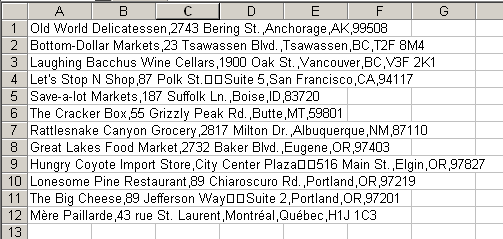
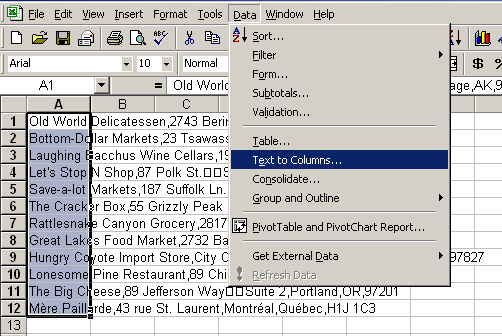
Select the column with the data, not the columns where you want the data to end up, and choose Text To Columns from the Data menu.
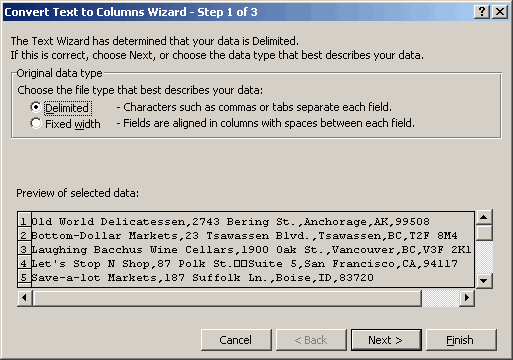
In the first dialog, you tell Excel whether the data is delimeted or fixed-width. Since this data is separated by commas, choose delimted.
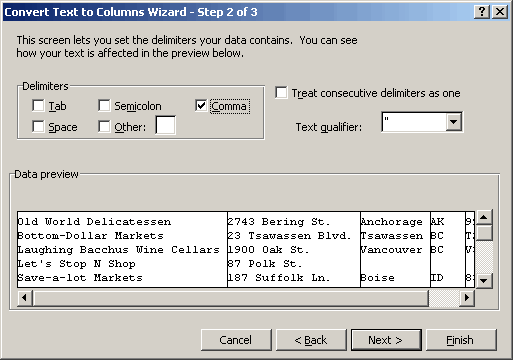
Next, tell it which character is separating the text (commas in this case) and some special text handling stuff.
Finally, you have the option of telling Excel what kind of data is in each column. All of this data is simple text, so we’ll leave it set to General.
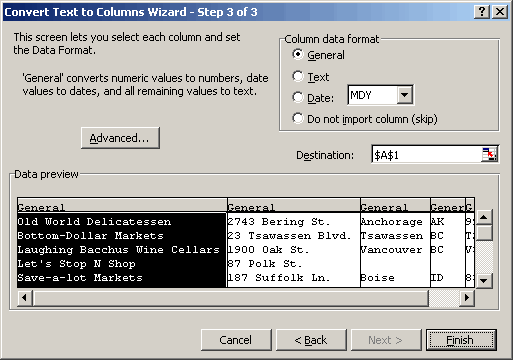
Click Finish, and with a little adjustment to the column widths, you can see the data separated into columns.
To bring text on the worksheet, most people will copy and paste. If at all possible, open the text file from within Excel: File, Open, enter or select File Name, choose All Files from “Files of Type”, and then proceed as explained above in order to divide the text. This way, you avoid the problems that often occur with the “text to columns” procedure.
Working in the finance industry, I have found Text-to-Columns very useful when dealing with SWIFT financial messages which are Delimited with a combination of // and / – having created a very useful macro to pull the security identifier out of a finacial statement message or a reconciliation module download.
Sorry if that was a little obscure, but I thought it would be useful to show that this procedure has its uses!
Stephen
I have to work with lots of text files, which I typically do some pre-processing on in a text editor then copy / paste it to Excel and then use the Text To Columns function. Fine so far. But, if I have another text file in a slightly different format and copy / paste it Excel decides it knows already how to parse this one so it goes ahead and does it anyway. There seems to be no way to override this behaviour (within an Excel session) that I have found – any ideas?
PS Love the blog – shameless fawning in the hopes of getting an answer :-)
Tony: I’ve never heard of that. Can you mail me an example? Also tell me what version of Excel you’re using.
I’ve noticed the same behavior Tony describes using the Adobe Reader. It happens with pdf files that were generated from printed spreadsheets. If I use the text select tool to copy multiple columns, sometimes it pastes into one column, and sometimes it parses it for me. It seems to happen at random and when it does parse, it does a poor job.
Another oddity is that it’ll sometimes paste the data from the last column first, but I know it’s not wrapping the text since it is on the proper line.
Dick,
I’ve just (finally) sent you an example, it’s coming from a different e-mail address though so hopefully it won’t get dropped into junk mail. Subject line is “Text to Columns – Sample File”
I’ve not used Adobe Reader so can’t comment on that one. Also, I’ve never had columns move around on me – guess that must be unique to Adobe too.
Kind regards
This is great, but I keep getting the error that there are not enough columns for the 20000+ individual pieces of data. any way to get it directly to 1 coulmn?
This is great, but I keep getting the error that there are not enough columns for the 20000+ individual pieces of data. any way to get it directly to 1 coulmn?
My text is not wrapping in some cells in Excel even though I selected wrapping under format/cell. Can someone help me resolve this problem.
In order to prevent the automatic parsing of data when pasting into a column…
Click to select the entire column
Click Data
Click Text to Columns
Click Delimited then Click Next
Uncheck any Delimiters that are checked
Click Finish
Hi,
I am having trouble converting text to columns. I imported a text file into Access and somehow there is a symbol | that is not an option in convert text to columns function. Typically, I’ve seen fields joined by commas and semicolons. This is the first time I’ve seen them joined by a straight line dash. I wonder if there is a keyboard short cut for the straight line dash so that I can insert into the box next to the “other” option. For some reason, Excel won’t allow me to insert a symbol into the “other” box and I wonder how I can separate out the multiple fields that are jammed into the same column.
I bet I made no sense, but would be glad to send a sample of what I’m talking about if you need me to.
Thank you.
Sincerely,
-Tina
Tina, is this text file accessible to you (e.g. located on your hard or network drive)? What type of file is it?
In Excel 2003, I would like to open a file, with a .XLS extension, that has been exporting from a text-based financial program. When it is exported, it is specified with the .XLS extension, so when Excel opens the file, it doesn’t automatically prompt with the Text-to-Columns wizard. Is this because the file needs to be exported without any extension at all first, and then renamed later?
Thanks.
I down load old Census data which is in blocks of 7 digits. I note the text to column wizard allows you to choose a fixed width, but only manually – which in rows of several thousand digits is very time consuming.
Is there a macro that puts in a comma?
Or is there any other simpler way of doing this?
If I do manually save the 7 digit format can I apply it to the next file?
hi
i have multiple files that i need to import in excel and need to convert to columns. is it possible to do those all in once, instead of opening each file and processing them one at a time?
thanks! (it’s 1200 files, so it will save some time to do them all in one “text to column wizard” session)
Wes,
I would like to apply your method but I don’t find the option “Uncheck any delimiters that are checked”.
I’ve got the Excel 2002 SP3 version.
Have you got another method?
I am using this feature in Excel and have for many years. It is great. However, I am running into a problem. It is suddenly starting to drop some data. I have test num | med rec # | complete date| order comment| result comment.
I am picking up the first 50 characters in the order comment and it is dropping the rest. Is anyone aware of a limit as to the number of characters it will split? Is there a way around this?
Is there a way to use Text to Columns for the first dash only? I have some text that contains more than one dash but I want only two new columns as apposed to three or four, is that even possible? Did that make sense?
Jenny: I don’t think you can use Text to Columns for that. You could use formulas, however. For this left part
and for the rest
Jenny: If the first dash is in a consistant position within the cells’ string you can use the Fixed width option, chosen in step 1 of the Text to Columns Wizard. Make a break before the first hyphen and one after. Don’t import the hyphen column, which you can choose in step 3.
Hello All,
I have used the ‘Text to Column’ option today and although I’ve found it to be very useful I’ve encountered an issue whereby I need to format the cell (to ‘Phone Number’) once having used the ‘Text to Column’ feature. Unfortunately the ‘Phone Number’ format option is not available during the 3 step process and I am able to use Date, General or Text options only. Would anyone know of a way I can still use general Cell formatting once I’ve used the ‘Text to Column’ option?
Thanks!
Prue
When text to column is used, how could this be displayed i.e., 01001123 as 01 001 123 insted of 1 1 123 could any one hlp pl
Hi jraju,
Send the file at excelkanwal@rediffmail.com
i am not getting text to columns when data have enter symbol or special character
Hi! I have posted this feature but in 2007 version:
http://runakay.blogspot.com/2012/01/separating-one-cell-text-in-columns.html
EXCEL 2003:
Earlier on when I opened a .CSV file from our fileserver the file showed as a “normal” Excel file. So the text/data were spread over several columns.
Recently I saved such a .csv file and opened it afterwards.
Since that time every .CSV file I open shows as a .CSV file, so I’ll have to convert it with DATA/Text To Columns.
Workable but not like before…
Apparently I “flipped some switch” somewhere in Excel..
Who can tell me wheres that switch is?
Henk: Check our Windows Regional Settings. Generally this happens if you WRS has a semicolon for a separator and your file has a comma, or vice versa.
I’m looking for a way to right justify the text within the “Convert text to columns Wizard” preview (Step 1 of 3). My goal is to separate the last 8 characters of the text cell. The text sentences vary by cell. Thanks
Check out Dick’s http://www.dailydoseofexcel.com/archives/2009/03/01/quick-text-to-columns-utility/. I use this all the time to get the last few columns of numbers, when there are varying numbers of words in the first column(s). Thanks again Dick!
step1 :- click on record macro under view option in office 2010
step2 :- perform a text to column operation manually with the wizard under ‘data’ option in 2010
step3:- stop macro & its ready
step 4:- now Wherever you require that type of text to column(which you did manually) , select the column & run macro(you can create a button also to call the macro.
so no need of wizard . on click & text to column done , hope it helps