Data Validation is a nice feature for restricting cell inputs, but sometimes you want the user to be able to add an item to the DV list. With the Worksheet_Change event and a dynamic range name, you can allow the user to do just that.
First, set up a dynamic named range for your list
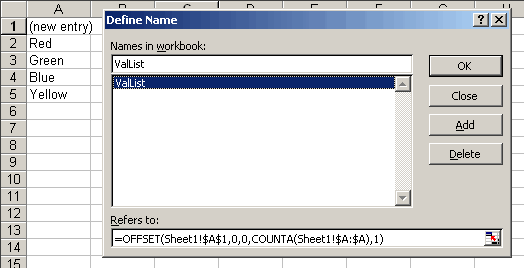
Note the first item in the list is “(new entry)”. This will be used to trigger the macro that allows the user to add to the list. Next, create the data validation
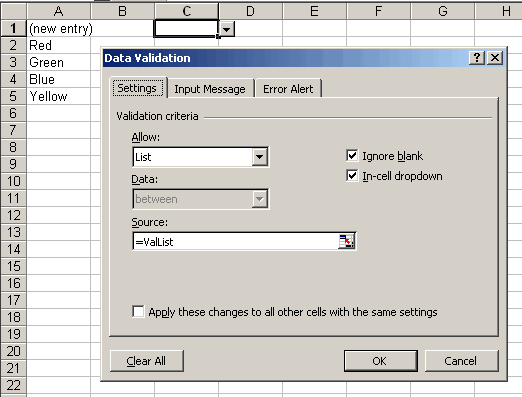
Finally, create the code in the Change event to catch when the user selects (new entry).
Private Sub Worksheet_Change(ByVal Target As Range)
Application.EnableEvents = False
Dim vResp As Variant
Dim sTestValid As String
'Make sure the cell has validation
On Error Resume Next
sTestValid = Target.Validation.Formula1
On Error GoTo 0
'If the validation refers to our list and the user
'selected New entry
If sTestValid = " = ValList" Then
If Target.Value = "(new entry)" Then
'Get the new value from the user
vResp = InputBox("Enter new item", "New Entry")
'If the user didn't click cancel
If Len(vResp) > 0 Then
'add the new entry to just below ValList
With Me.Range("ValList")
.Cells(.Cells.Count + 1).Value = vResp
End With
'Set the cell to the new entry
Target.Value = vResp
Else
'If the user cancelled, clear the cell
Target.ClearContents
End If
End If
End If
Application.EnableEvents = True
End Sub
You can beef up the code to make sure the user is entering something reasonable. The code can also be modified for use with a hard-coded list, as opposed to a range. But I have to leave something for you to experiment with.
That’s an interesting bit of code. I’m surprised that
With Me.Range(“ValList”)
.Cells(.Cells.Count + 1).Value = vResp
End With
doesn’t cause an error, though. Wouldn’t it be trying to access a cell that is not actually in that range? Or is it such that with the dynamic named range, you can get away with a bit?
Andy: That’s a subject for a post that I’ve been meaning to do. Range is just one of those objects that’s really a collection, but not really it’s an object – got that. It’s like the Item property applies to the whole sheet even when used with just a range. It’s strange.
So, in other words, even if a range contained 5 cells, you could theoretically write to a 6th or 7th cell in that range?
I knew I had read it at Chip’s site:
http://www.cpearson.com/excel/cells.htm
If your dynamic range is on another worksheet, then you’ll get an error. A few additions to determine which worksheet contains the dynamic range:
Private Sub Worksheet_Change(ByVal Target As Range)
Application.EnableEvents = False
Dim vResp As Variant
Dim sTestValid As String
Dim valShtName As String
‘Determine the worksheet with the list
valShtName = ValSht(“ValList”)
‘Make sure the cell has validation
On Error Resume Next
sTestValid = Target.Validation.Formula1
On Error GoTo 0
‘If the validation refers to our list and the user
‘selected new entry
If sTestValid = “=ValList” Then
If Target.Value = “(new entry)” Then
‘Get the new value from the user
vResp = InputBox(“Enter new item”, “New Entry”)
‘If the user didn’t click cancel
If Len(vResp) > 0 Then
‘add the new entry to just below ValList
With Sheets(valShtName).Range(“ValList”)
.Cells(.Cells.Count + 1).Value = vResp
End With
‘Set the cell to the new entry
Target.Value = vResp
Else
‘If the user cancelled, clear the cell
Target.ClearContents
End If
End If
End If
Application.EnableEvents = True
End Sub
Function ValSht(rngName As String) As String
On Error Resume Next
ValSht = ThisWorkbook.Names(rngName).RefersToRange.Parent.Name
End Function
Maybe I’m missing something, but the whole “dynamic range” thing (for a data validation source or chart data source) seems clever but overly complicated to me.
If you’ve got a list in the range C1:C5 but think you or someone else will later add an entry to it, why not just enter under source: C1:C100?
Matt,
Because that creates a *very* long list with *a lot* of empty options… not very pretty, and sometimes confusing for the user.
And Brian, you could just replace
Me.Range(“ValList”)
with
Me.Parent.Names(“ValList”).RefersToRange
because ValList is a workbook name.
Actually, the blank lines do not show up in the Validation Listbox.
Yep… they won’t… I could swear the did ! but nope, thanks for the correction Andy.
No problem. To be honest, I thought that they did too, but I must be remembering the older listbox/combobox controls that I’ve used, rather than validation dropdown boxes.
I figured I’d test my thought before posting, and it turned out that my initial thought, like yours, was wrong. I wonder if it’s the same for earlier versions of Excel.
Thanks for a great piece of code!
As an extension, if you want the newly-added items to appear in the combo, add a line of code to extend the range after adding the new entry:
With Me.Range(sRange)
.Cells(.Cells.Count + 1).Value = vResp
‘resize the range
.Resize(.Rows.Count + 1, .Columns.Count).Name = sRange
End With
Hope this helps someone out there!
David.
I have the source of the list at C1:C10 and then apply the validation list to A1:A10. If, then I put item 1 to A1, I want the rest cells (A2:A10) doesnt include item 1 in the validation list. And so in A2 with item 4, then range A3:A10 doesnt include item 1 and item 4? When i filled up 9 cells, the last cell will only provide one option, the last item. Is it possible to do that?
Hi,
Great webpage!
I do follow all steps.
Can not get it to run.
If I choose (new entry)… (new entry) will be typed…
Thanks for help.
Never mind.
The fix was… copy the code first into WORD and from there into VB..
for some reason the ” signs were not right when pasting directly into VB.
Again, awesome webpage with great people!
Thanks Flogsta. I upgraded it to the new VBA-showing-scheme so the quotes should paste directly now.
Does this work if the LIST is on another worksheet?
I have the drop-down worksheet A and the list on B. Everything works fine except when I select (NEW ENTRY). I won’t let me add any new entry.
First I get an ERROR Message and after that no error message but (NEW ENTRY) will be typed into the cell.
Thanks for your help and input.
This is what I’ve been looking for, thank you. Now I have some questions:
1. There is a comment posted about having the dynamic range on a different sheet than the data validation. There is another comment further down asking about this very thing that wasn’t answered.
Due to the large number of entries I have to work with, it is almost imperative that the two be on different worksheets. Is this possible?
2. I will also need to have the user enter a SKU (validated or added to the list), if the entry exists in the list, the description for the SKU needs to be pulled from the dynamic range. I think I have that much figured out in my working model. The question is how I would have a new description added along with the new SKU.
Any help you can give to shed light on this would be appreciated.
what to do if the name range is on another worksheet?
any simple solution that
— input list box in shhet1 and
— data range in another sheet2 !
they are not at same page .