Author Archive

Changing names of some files in a directory

This started off by helping myself to Dick’s code in ‘Removing Spaces from File Names’ (http://www.dailydoseofexcel.com/archives/2009/11/12/removing-spaces-from-file-names/) but quickly evolved to meet my own needs.

First, was the requirement to replace a certain text string by another. I added 3 parameters to the subroutine (Dirname, ReplaceWhat, and ReplaceBy). Also evident was that some files had leading spaces as well as multiple consecutive embedded blanks. I added an optional Boolean doTrim.

By using Dir rather than FileSystemObject I could restrict the returned file names to those that matched the search criteria. Consequently, it was certain that the file name would change.

Option Explicit
    Function addPathSeparator(ByVal DirName As String)
        Dim PS As String: PS = Application.PathSeparator
        If Right(DirName, Len(PS)) <> PS Then _
            DirName = DirName & PS
        addPathSeparator = DirName
        End Function
Sub FilenameReplace(ByVal DirName As String, ByVal ReplaceWhat As String, _
        ByVal ReplaceBy As String, Optional ByVal doTrim As Boolean = False)
    Dim CurrName As String
    DirName = addPathSeparator(DirName)
    CurrName = Dir(DirName & "*" & ReplaceWhat & "*")
    Do While CurrName <> ""
        Dim NewName As String
        NewName = Replace(CurrName, ReplaceWhat, ReplaceBy)
        If doTrim Then NewName = Application.WorksheetFunction.Trim(NewName)
            'VBA Trim leaves embedded multiple spaces alone; _
             Excel's TRIM changes them to a single space
        On Error GoTo Catch1
        Name DirName & CurrName As DirName & NewName
        GoTo Finally1
Catch1:
        Debug.Print "Error changing '" _
                & CurrName & "' to '" & NewName & "'" & vbNewLine _
            & "    Error: " & Err.Description _
                & " (" & Err.Number & ")"
        Resume Finally1
Finally1:
        CurrName = Dir()
        Loop

End Sub

Then, I found some files had characters just before the text to be replaced that were “special characters.” I added an optional boolean useRegExp together with the code to use a regular expression to do the cleaning.

So, a filename like ‘This is a file, change me.xls’ should become ‘This is a file changed you.xls’

Unlike the above code, Dir could not be used to restrict the filenames since it does not support regular expressions. Consequently, I included a test to ensure that the new name differed from the old name before using the Name statement to rename the file.

The code below has been lightly tested as in it worked for the few directories that I had to process, each with a different set of rules.

Option Explicit
#Const EarlyBind = False

Sub FilenameReplaceRegExp(ByVal DirName As String, _
        ByVal ReplaceWhat As String, ByVal ReplaceBy As String, _
        Optional ByVal doTrim As Boolean = False, _
        Optional useRegExp As Boolean = False)

    #If EarlyBind Then
    Dim RE As RegExp
    #Else
    Dim RE As Object
        #End If
    If useRegExp Then
        #If EarlyBind Then
        Set RE = New RegExp
        #Else
        Set RE = CreateObject("VBScript.RegExp")
            #End If
        RE.IgnoreCase = True
        RE.Global = True
        RE.Pattern = ReplaceWhat
        End If
    Dim CurrName As String
    DirName = addPathSeparator(DirName)
    CurrName = Dir(DirName & "*.*")
    Do While CurrName <> ""
        Dim NewName As String
        If useRegExp Then
            NewName = RE.Replace(CurrName, ReplaceBy)
        Else
            NewName = Replace(CurrName, ReplaceWhat, ReplaceBy)
            End If
        If doTrim Then _
            NewName = Application.WorksheetFunction.Trim(NewName)
            'VBA Trim leaves embedded multiple spaces alone; _
             Excel's TRIM changes them to a single space
        If NewName <> CurrName Then
            On Error GoTo Catch1
            Name DirName & CurrName As DirName & NewName
            GoTo Finally1
Catch1:
            Debug.Print "Error changing '" _
                    & CurrName & "' to '" & NewName & "'" & vbNewLine _
                & "    Error: " & Err.Description _
                    & " (" & Err.Number & ")"
            Resume Finally1
Finally1:
            End If
        CurrName = Dir()
        Loop

    End Sub

Invoke the above subroutine as

    FilenameReplaceRegExp "c:\dir to check", "\W*change me", "changed you", True, True

Tushar Mehta

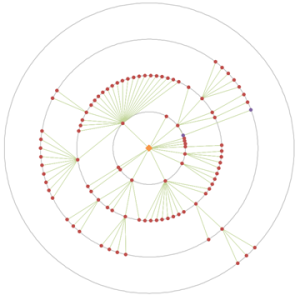
Visualizing data in Excel: How would you interpret this graphic?

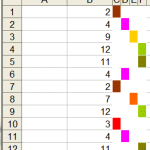
Because I have no clue. It’s from an university alumni magazine. The names I’ve smudged (or tried to anyways) are the various colleges. Could this graphic be done in Excel? Yes. Should it?

ddoe-whats-this-chart

Tushar Mehta (www.tushar-mehta.com)

Visualizing data in Excel: Balancing the physical and logical dimensions of a chart

When Excel creates a chart it assigns, by default, certain physical dimensions to the chart. These physical dimensions (height and width) are independent of the logical content of the chart. So, in the case of a column chart the physical shape of the chart is the same irrespective of whether it contains 2 columns or 200. Similarly, for a XY Scatter chart, the size of the chart is independent of the range of the X or Y dimensions. For example, if we were to plot data that constitute a circle, the default chart would look like Figure 1.

ddoe-chart1
Figure 1

This is clearly misleading since the physical width of the chart is greater than the height even though both the X and Y ranges are the same (each of them goes from -30 to +50) - and the minimum and maximum of the plotted values are also the same (-20 and +40 respectively).

In reverse, we could have data that represent an ellipse but because of the physical shape of the chart look like a circle - see Figure 2.

ddoe-chart22
Figure 2

In this case, though the physical dimensions of the chart match each other, the logical X range is 2.5 times larger than the logical Y range (-30to +50 and -10 to +30 respectively).

The code below adjusts the physical height of the active chart so that the ratio of the physical dimensions match the ratio of the logical ones. The corrected version of Figure 1 is Figure 3.

ddoe-chart4
Figure 3

and the corrected version of Figure 2 is Figure 4.

ddoe-chart31
Figure 4

There are two constants that control what the code in balanceAxis does. changeAxes causes the code to change the min. and max. values of both the X and Y axis based on the values of the series in the chart. useSeriesVals results in the code using the min. and max values of the series plotted in the chart for balance calculations rather than the min. and max. values of the 2 axes. Obviously, having changeAxes as true implies useSeriesVals.

To use the below, select a chart — it must be a chart where both X and Y axis are numeric scales — and run the balanceAxis subroutine (use ALT+F8 to open the Macro dialog box) . Given the wide range of possibilities with options across charts, the wide range of charts across all the different versions of Excel, the below works where it works.

Option Explicit
Private Function MinVal(aChart As Chart, Optional CategoryVals As Boolean)
    Dim I As Integer
    If CategoryVals Then _
        MinVal = Application.WorksheetFunction.Min( _
            aChart.SeriesCollection(1).XValues) _
    Else _
        MinVal = Application.WorksheetFunction.Min( _
            aChart.SeriesCollection(1).Values)
   
    For I = 2 To aChart.SeriesCollection.Count
        If CategoryVals Then _
            MinVal = Application.WorksheetFunction.Min(MinVal, _
                aChart.SeriesCollection(I).XValues) _
        Else _
            MinVal = Application.WorksheetFunction.Min(MinVal, _
                aChart.SeriesCollection(I).Values)
        Next I
    End Function
Private Function MaxVal(aChart As Chart, Optional CategoryVals As Boolean)
    Dim I As Integer
    If CategoryVals Then _
        MaxVal = Application.WorksheetFunction.Max( _
            aChart.SeriesCollection(1).XValues) _
    Else _
        MaxVal = Application.WorksheetFunction.Max( _
            aChart.SeriesCollection(1).Values)
   
    For I = 2 To aChart.SeriesCollection.Count
        If CategoryVals Then _
            MaxVal = Application.WorksheetFunction.Max(MaxVal, _
                aChart.SeriesCollection(I).XValues) _
        Else _
            MaxVal = Application.WorksheetFunction.Max(MaxVal, _
                aChart.SeriesCollection(I).Values)
        Next I
    End Function
Private Sub getMinMaxVals(ByVal aChart As Chart, ByVal useSeriesVals As Boolean, _
        ByRef XMin As Single, ByRef XMax As Single, _
        ByRef YMin As Single, ByRef YMax As Single)
    With aChart
    If useSeriesVals Then
        YMin = MinVal(aChart): YMax = MaxVal(aChart)
        XMin = MinVal(aChart, True): XMax = MaxVal(aChart, True)
    Else
        With .Axes(xlValue)
        YMin = .MinimumScale
        YMax = .MaximumScale
            End With
        With .Axes(xlCategory)
        XMin = .MinimumScale
        XMax = .MaximumScale
            End With
        End If
        End With
    End Sub
Private Sub updateChartAxes(aChart As Chart, _
        ByVal XMin As Single, ByVal XMax As Single, _
        ByVal YMin As Single, ByVal YMax As Single)
    With aChart
    With .Axes(xlValue)
    .MinimumScale = YMin
    .MaximumScale = YMax
        End With
    With .Axes(xlCategory)
    .MinimumScale = XMin
    .MaximumScale = XMax
        End With
        End With
    End Sub
Sub balanceAxis()
    Const changeAxes As Boolean = False, _
        useSeriesVals As Boolean = False
    Dim aChart As Chart: Set aChart = ActiveChart
    Dim XMin As Single, XMax As Single, _
        YMin As Single, YMax As Single
    Dim NewXMin As Single, NewXMax As Single, _
        NewYMin As Single, NewYMax As Single
    Const cMaxTries As Integer = 3
    Dim Ratio As Single, OldRatio As Single, Tries As Integer
        'If the axes are on automatic scaling, changing the _
         physical dimension may change the min/max axis values. _
         If that happens and if the height-to-width ratio changes, _
         the code will readjust the physical dimensions.  However, _
         to avoid a perpetual loop the number of attempts is _
         limited to cMaxTries
   Tries = 0
    Do
        Tries = Tries + 1
        getMinMaxVals aChart, changeAxes Or useSeriesVals, _
            XMin, XMax, YMin, YMax
        With aChart
        If changeAxes Then updateChartAxes aChart, XMin, XMax, YMin, YMax
        Dim DesiredHeight As Single
        OldRatio = (YMax - YMin) / (XMax - XMin)
        DesiredHeight = .PlotArea.Width * OldRatio
        .ChartArea.Height = DesiredHeight _
            * .ChartArea.Height / .PlotArea.Height
            'The above retains the ratio of the heights of the _
            chartarea and plotarea
       .PlotArea.Height = DesiredHeight
        getMinMaxVals aChart, changeAxes Or useSeriesVals, _
            NewXMin, NewXMax, NewYMin, NewYMax
        Ratio = (NewYMax - NewYMin) / (NewXMax - NewXMin)
        Debug.Print "Try " & Tries & ", Old Ratio=" & OldRatio _
            & ", Plotarea=" & .PlotArea.Height / .PlotArea.Width _
            & ", Chartarea=" & .ChartArea.Height / .ChartArea.Width _
            & ", Ratio=" & Ratio
            End With
        Loop Until Tries >= cMaxTries Or Abs(OldRatio - Ratio) < 0.00000001
    Debug.Print ""
    End Sub

Starting multiple programs in MS Windows

While not Excel specific, I thought this would be useful to others.

There are instances when I want to run a set of programs. One example is shortly after I log on to my computer when would like to start up MS Outlook, Firefox, IE 64bit, and Forte Agent.

I wrote a VBS script, run through the Windows Script Host, that does the needful.

Create a text file (use Notepad if you want or MS Word)

Set WshShell = WScript.CreateObject("WScript.Shell")
WshShell.Run """%ProgramFiles(x86)%\Microsoft Sysinternals\procexp.exe"""
WshShell.Run """%ProgramFiles(x86)%\mozilla firefox\firefox.exe"""
WshShell.Run """%programfiles%\internet explorer\iexplore.exe"""
WshShell.Run """%ProgramFiles(x86)%\microsoft office\office12\outlook.exe"""
WshShell.Run """%ProgramFiles(x86)%\Agent\agent.exe"" c:\users\tm\Forte\Agent"

Save the file as “My Programs.vbs” or whatever you prefer. This is one of those rare instances when I would consider putting a file on the desktop. To run all the programs double click the file. Assuming you have the correct full program name in each line, that program will start running. An error on one line will terminate the script.

Note the required use of quotes around a program name when the name has a space in it. To insert a quote in a string one must use two consecutive quotes. Consequently, a quote at the start of a string requires three quotes in succession. The first starts the string and the next 2 cause the 1st character in the string to be a quote. Similar logic applies when the quote is at the end of the string. Otherwise, one would see just 2 consecutive quotes as after the .exe in the last line of the file.

The above uses the environment variables programfiles and ProgramFiles(x86), which map to the 64bit program directory and the 32bit program directory respectively. To not use them, replace the %variable% with the explicit path.

Set WshShell = WScript.CreateObject("WScript.Shell")
WshShell.Run """C:\Program Files (x86)\Microsoft Sysinternals\procexp.exe"""
WshShell.Run """c:\program files (x86)\mozilla firefox\firefox.exe"""
WshShell.Run """c:\program files\internet explorer\iexplore.exe"""
WshShell.Run """c:\program files (x86)\microsoft office\office12\outlook.exe"""
WshShell.Run """C:\Program Files (x86)\Agent\agent.exe"" c:\users\tm\Forte\Agent"

Tushar Mehta
www.tushar-mehta.com

A quick tip - Working with arrays with unknown bounds

Two recent instances required transferring data from one array to another. One was a solution to speed up the use of COUNTIF for each element in a large range testing against another large range. In the process I had to build several building blocks including a replacement for the native Excel TRANSPOSE function, which unfortunately is limited to 65,536 elements.
COUNTIF for a large unsorted array and many searches
http://www.tushar-mehta.com/publish_train/xl_vba_cases/1011_Array_CountIf.htm

In the other I was illustrating how to build an “abstraction layer” between an Excel range and a VBA array (http://www.dailydoseofexcel.com/archives/2006/12/04/writing-to-a-range-using-vba/#comment-41826).

Transferring data from one array to another requires a loop to transfer data one element at a time. While one might be tempted to focus on an array assignment (ToArr = FromArr) or even the CopyMemory (RtlMoveMemory) API, neither would work for transposing an arbitrary array or for performing some mathematical operation while transferring the data from one array to the other.

It would be fairly easy to write a For loop if we knew that the bounds of both arrays were the same, which, in turn, is fairly easy to do in VB(A) since it supports the ability to declare both the lower bound and the upper bound of an array. However, in some cases, we might be given both the source and the destination array and not have the ability to change their respective dimensions, Moreover, other languages, including VB.Net do not support an explicit lower bound — it is always zero. Consequently, for the sake of generalization the code has to deal with any lower bound, and to minimize the pain of moving to .Net, I’ve started declaring all my arrays with a lower bound of zero.

Given the above, here’s what we have: An unknown lower bound of the source array, a possibly unknown lower bound for the destination array, and any array we declare will have a lower bound of zero. So, when we index these two source and destination arrays, we need two indices, one for each array. Further, since a For loop cannot have 2 control variables, we have to keep track of one of the indices by hand.

Option Explicit
Option Base 0
Function ArrLen(Arr, Optional ByVal aDim As Integer = 1)
    ArrLen = UBound(Arr, aDim) - LBound(Arr, aDim) + 1
    End Function
Sub xferArr(FromArr(), ByRef ToArr())
    ReDim ToArr(ArrLen(FromArr) - 1)
    Dim I As Long, J As Long: J = LBound(ToArr)
    For I = LBound(FromArr) To UBound(FromArr)
        ToArr(J) = FromArr(I)
        J = J + 1
        Next I
    End Sub

While the above should be easy to understand, I don’t like the fact that one has to keep track of the J index separately from the loop control variable (the I index). An alternative that uses a single index is below. Given the index to the source array it computes the destination index as follows. From the source index subtract the lower bound of the source array. This gives the index treating the source array as if it were zero-based, irrespective of its actual lower bound. This index would work with any array that were zero-based, including the destination array - if it were zero-based. To adjust to its actual lower bound, simply add the zero-based index to the array’s actual lower bound. This gives the actual index for the destination array.

Sub xferArr(FromArr(), ByRef ToArr())
    ReDim ToArr(ArrLen(FromArr) - 1)
    Dim I As Long
    For I = LBound(FromArr) To UBound(FromArr)
        ToArr(I - LBound(FromArr) + LBound(ToArr)) = FromArr(I)
        Next I
    End Sub

One might be tempted to argue that the 2 lower bounds are repeatedly computed inside the loop. I don’t know how expensive an operation that is but there are three ways to address the issue. One, don’t worry about it unless it proves to be a real bottleneck. Two, hope the compiler is an optimizing compiler and smart enough to recognize neither function changes inside the loop. Three, explicitly declare two variables, one for each lower bound and assign the values just before starting the loop.

Sub xferArr(FromArr(), ByRef ToArr())
    ReDim ToArr(ArrLen(FromArr) - 1)
    Dim LBF As Long, LBT As Long
    LBF = LBound(FromArr): LBT = LBound(ToArr)
    Dim I As Long
    For I = LBound(FromArr) To UBound(FromArr)
        ToArr(I - LBF + LBT) = FromArr(I)
        Next I
    End Sub

In a follow up link to the one referenced above on creating a data abstraction layer, I show how to use the above technique when dealing with three arrays. See http://www.dailydoseofexcel.com/archives/2006/12/04/writing-to-a-range-using-vba/#comment-41827

On a slightly different, though related, note I think Microsoft, like the designers of other modern languages, made a big mistake removing the ability to explicitly declare both bounds of an array dimension. There are many instances where this feature would lead to code that would be much more natural to understand. One simple example is working with ages. If one wanted to deal with, say, financial planning for retirement, it is a lot more natural to have an array X(65 to 80) rather than X(14) and then having to implicitly (or explicitly) map X(0) to age 65 and X(14) to age 80. One may also want negative indices when dealing with height (and depth) relative to, say, sea level or with temperatures that can go below zero. See also
On Arrays with non zero lower bounds etc
Posted by Gary Cornell (http://ablog.apress.com/?p=31)

Searching multiple web resources

Not quite Excel related but something I thought might be useful to others…

Some time back I wrote a JavaScript based webpage that let me search multiple web resources from a single page. Recently, I enhanced the page to support the addition of new search resources “on the fly.”

So, from this one page (http://www.tushar-mehta.com/search/web.htm) I can simultaneously search multiple search engines like Google, Yahoo, and Bing. Similarly, from http://www.tushar-mehta.com/search/product.htm I can search several retail sites for a product of interest. This is geared towards office and technology products whereas http://www.tushar-mehta.com/search/retail.htm targets clothing and home. Of course, since one can add new sites on the fly any of the above pages can be “re-targeted” to a different type of store. Customization does require that cookies be enabled.

Using VBScript to monitor Office events…or not

I spent an unexpectedly long time trying to figure out how to monitor Office events using VBScript and this post shares my experience, largely disappointing. The below scenarios were tested with Vista Ultimate and Office 2007 as well as with Windows 7 Ultimate and Office 2010 Beta.

This is about using VBScript through the Windows Script Host (WSH) — not VB6, not VBA, not VB.Net, and not VBScript in a browser — to sink Office application events.

For the longest time I was under the impression that there was no way to write event procedures in WSH-based VBScript. It turns out that VBScript (either in a .VBS file or in a .WSF file) running through the WSH does have a few different ways of monitoring events raised by programs it can connect to. These are documented in Scripting Events

Essentially, there are two ways to connect procedures with events.

  • The first way to connect a procedure with an event is to inform the WSH as to the prefix used in the names of the event procedures. This in turn can be done in two ways.

    • The first is to use the WScript CreateObject (or GetObject) methods. While named the same as the VB CreateObject and GetObject functions, these two methods include an additional argument. This string argument tells the WSH the prefix of the event procedures names. An example of the GetObject method is

         set anObj=wscript.getobject("","powerpoint.application","Obj_")
    • The second technique to inform the WSH of the prefix of the event procedures names is to use the ConnectObject method. This is also documented in the Scripting Events reference above.
  • The second way to connect a procedure with an event is by declaring an object capable of raising events. The ID of the object becomes the prefix of the event procedure. The declaration in a WSF file looks something like

    <job>
    <object progid="word.application" id="myorder" events="true"/>
    </job>

Since my primary intent was to monitor Excel events, I went about it using the first approach. I tested with…as you can imagine just about every variation and combination thereof I could think of…both the CreateObject and the GetObject methods and discovered neither worked. I tried the ConnectObject method and it resulted in a run time error — something about an error with CreateObject. Of course, I thought I was doing something wrong and I spent who knows how many hours testing, retesting, Googling, testing, and retesting.

Finally, I gave up and decided to use the object declaration approach. That too did not work! After more struggling with tests, retests, Google searches, tests, and retests, I figured I was doing things correctly and decided to test Word.

Well, Word worked with the Object declaration approach but not the CreateObject/GetObject/ConnectObject methods!

Just to round out the tests, I tested PowerPoint. It worked with the GetObject method but not the Object declaration!

So, bottom line. None of the documented methods for monitoring events in VBScript seems to work with Excel. One can monitor Word events only with the object declaration approach and one can monitor PowerPoint events only with the GetObject approach.

Maybe, I missed something — and if so someone please tell me what I did wrong — but as of now it has been several days of all sorts of frustration.

The two approaches that work:

Track PowerPoint events in a VBS file:

option explicit
dim anObj, aDoc, aDoc2
sub Obj_NewPresentation(byval WB)
    msgbox "In NewPresentation: " & wb.name
    end sub

sub testEvent()

    set anObj=wscript.getobject("","powerpoint.application","Obj_")
    anObj.visible=true
    set aDoc = anObj.presentations.add()
    set aDoc2 = anObj.presentations.add
    dim I
    for I=1 to 5
        wscript.sleep 1000
        next
    aDoc.close
    aDoc2.close
    anObj.quit
    end sub
'msgbox wscript.version
testEvent

It is also possible to respond to Word events with the following in a WSF file:

<job>
<object progid="word.application" id="myorder" events="true"/>
<script language="vbscript">
sub myorder_NewDocument(byval WB)
   Wscript.echo "In NewDocument: " & wb.name
end sub
myorder.visible=true
myorder.documents.add
wscript.sleep 5000
myorder.quit
</script>
</job>

The following four do not work. In each case, the application starts up, two new files open, and after the designated interval close and the application quits. However, the event procedures are not called.

Respond to an Excel event in a VBS file:

option explicit
dim xlObj, xlWB, xlWB2
sub Obj_NewWorkbook(byval WB)
    msgbox "In newWorkbook: " '& wb.name
   end sub
sub Obj_Calculate()
    msgbox "In Calculate" '& wb.name
   end sub

sub testEvent()

    set xlObj=wscript.getobject("","excel.application","Obj_")
    xlobj.visible=true
    'call wscript.connectobject (xlObj,"Obj_")
   set xlwb=xlobj.workbooks.add()
    set xlWB2 = xlobj.workbooks.add
    xlwb2.sheets(1).cells(1,1).value=1
    xlwb2.sheets(1).cells(1,2).formula="=A1+1"
    dim I
    for I=1 to 5
        wscript.sleep 1000
        next
    xlwb.close false
    xlWB2.close false
    xlobj.quit
    end sub
'msgbox wscript.version
testEvent

Respond to Word events in a VBS file also does not work.

dim xlObj, xlWB, xlWB2
sub xlObj_NewDocument(byval WB)
    wscript.echo "In newWorkbook: " '& wb.name
   end sub

sub testEvent()
    'set xlObj=wscript.getobject("","word.application","xlObj")
   set xlObj=wscript.getobject("","word.application","xlObj_")
    xlobj.visible=true
    xlobj.documents.add
    xlobj.documents.add
    wscript.sleep 3000

    xlobj.quit
    set xlobj=nothing
    end sub
sub testEvent2()
    set xlObj=createobject("word.application")
    'wscript.connectobject xlObj,"xlObj"
   wscript.connectobject xlObj,"xlObj_"
    xlobj.visible=true
    xlobj.documents.add
    xlobj.documents.add
    wscript.sleep 3000

    xlobj.quit
    end sub
testEvent
testEvent2

Respond to Excel events in a WSF file does nothing:

<job>
<object progid="excel.application" id="myorder" events="true"/>
<script language="vbscript">
sub myorder_NewWorkbook(byval WB)
    Wscript.echo "new order received myorder " & wb.name
    end sub
myorder.visible=true
myorder.workbooks.add
wscript.sleep 3000
myorder.quit
</script>
</job>

and finally, responding to PowerPoint events in a WSF file also does not work.

<job>
<object progid="powerpoint.application" id="myorder" events="true"/>
<script language="vbscript">
sub myorder_NewPresentation(byval WB)
   Wscript.echo "In NewDocument: " & wb.name
end sub
myorder.visible=true
myorder.presentations.add
wscript.sleep 5000
myorder.quit
</script>
</job>

Golf Charts — Another Take

Inspired by Dick’s interest in charts, I took a look at how I would have presented the data.

Some overall thoughts. I used Office 2010 beta for the charts shown below. There was not much, if any, difference between what I would have got with Excel 2007. I also stayed with the default Office theme. And, for what it is worth, I almost never use a non-theme color any more. By staying within a theme, I can change the look of the entire workbook by simply changing the theme.

In creating charts, I tend to use colors within the text on the chart to document the visual elements. So, in the chart for week 9, the high and low scores and the corresponding text are the same color (red and green).

And, of course, it always helps if you understand, at least to some extent, what is being shown. While I don’t have Dick’s depth of knowledge of golf, I do know that lower scores are better than higher scores. So, I tend to use colors associated with good results (green, for example) for lower scores and colors associated with poor results (red, for example) for high scores.

Week 8: As already noted, a smooth curve is misleading in this case. There are many instances where a smooth line is appropriate but this is not one of them. Further, even a straight line connecting the ranks between two successive weeks is not appropriate. After all, the change in ranking is an abrupt event that happens once a week. Just because someone was ranked #4 one week and #3 the next does not mean s/he was #3.5 halfway through the week. So, if one were to add lines connecting consecutive points they should create a “step chart.” Also, the key metric here is the status once a week. So, showing the markers is important. temp-ddoe-1

Week 9: To show the best and worst rounds for a golfer, I would use use a vertical separation to show the the scores and highlight the range. Of course, instead of a vertical separation one could also use a horizontal separation, but I picked the former. A good chart native to Excel for this kind of visualization is the Stock ‘High-Low-Close’ chart and I made the line thicker. Of course, it is not all that difficult to create one from scratch.
temp-ddoe-6

Week 10: A stacked column chart worked for this particular set of data since all the actual performances were worse than the handicaps. But, what if someone did better than their handicap? How does one show a negative column starting from the top of the lower column? Suppose Jack Hynes shot not a 21 but a 9. Then, we would want the blue column to go to 15 and the red column to start at 15 and drop to 9. But, there is no good way to show that. Instead, I prefer showing the handicap with a single point — which is after all what it is — and then draw a line up or down to show the actual result. And, I have used error bars for this kind of work for a long time. I modified Dick’s data to pretend that Jack did shoot 6 below his handicap. The chart below is a XY Scatter chart with two series, both of which represent the handicap. The first series has positive error bars formatted red. The 2nd series has negative error bars formatted green.
temp-ddoe-3

Week 11: As with Week 8, the important metric changes only at specific points along the x axis (Hole in this case). Using connecting lines without markers is somewhat misleading. After all, Miller did not have a half-bogey while walking to the first tee. In this case I decided to forgo even step connector lines and use just markers. I also thought it did not really help to show the performance relative to the par for the entire round. After all, a golfer doesn’t start the day with a hole zero score of par for the round (36 in this case). So, I chose to show the cumulative performance relative to par, represented by zero. The y-axis title documents the significance of above-zero and below-zero scores. If we wanted, we could add the cumulative player score as a data label. Finally, the default square marker looks much larger than the default diamond marker. So, I reduced the size of the former by two units.
temp-ddoe-51

Week 12: I have no idea what the 2 charts represent and lacking a golf context for them I left this week’s chart alone.

Week 13: Dick expressed some frustration at the ‘Upset Saturday’ chart and I can sympathize. As Jon noted, using dark colors and losing the gridlines would have helped. But, here’s a more important point. In most cases showing a lot of data results in nothing but confusion. But, there are exceptions. One such instance is when I show one of the metrics for a management simulation exercise I conduct on a regular basis. One of the results of this simulation is the resulting market price of a product in multiple markets (6 - 10) over several periods (8 - 12). The resulting chart looks very confusing and when the audience first sees it it invariably invokes an audible response. However, when I explain what the chart represents it makes sense to the participants. What it does represent is this: The prices in the markets start off all over the place. They also fluctuate each period. However, the cumulative effect of 10 periods of decision making and learning is that they are slowly converging to the theoretical optimum of about 50, even though this is not known to the participants! Some markets learn very smoothly (see the bright blue line with the star marker) others take a stumble and then pick up smoothly (the pink squares) while others fluctuate a bit but are eventually closing in on the optimum (the orange circles).
temp-ddoe-7

Week 14: Here again, I would use a chart with vertical lines to show the separation between the high and the low. To include a measure of the average, I chose the median rather than the mean.
temp-ddoe-81

Week 15: I would use steps to indicate the change in ranking rather than straight line connectors for the reason already mentioned above.
temp-ddoe-9

In the final chart, I have no idea what Dick wanted to show. But, here’s how I would create a bar chart on different scales such that it is easy to align. Start with a stacked bar chart. The first series is the actual value of the average scores. Then, we add a dummy series so that the total of the average plus the dummy series is a constant. I tried different numbers for aesthetic appeal before finally settling on 10. Then, I scaled the total scores down so that they don’t overwhelm the average scores. After some trial and error, I picked 9 as the largest possible score. So, all the scores are scaled by actual-score / max-score * 9. I plotted this as the 3rd stacked series. Finally, it is not possible to put data labels for a bar chart on the ‘outside end.’ So, I added a dummy series all with a value of 1 as the fourth stacked series.

The two dummy series were formatted to be ‘invisible.’ I also added the average values as the data labels for the 2nd series (formatted to the ‘inside base’ and the total scores as the data labels for the 4th series. I also formatted the horizontal (value) axis so that the vertical (category) axis crosses at a value of 9.temp-ddoe-a

Download the Excel 2010 XLSX workbook