I recently had to make some file folders at work. About five minutes after I was done, I purchased a DYMO LabelWriter 450. I was using one of those label makers where you punch in the text, hit print, and press down on a lever to cut the label. Then you have to take a pair of scissors and cut along the dotted line to get the right length. THEN you have to spend ten minutes fumbling with the backing. Brutal.
When I installed the software, it installed quite a few libraries. I wasn’t sure which one to pick, but after a little experimenting, I chose the Dymo Label Software v.8 SDK.
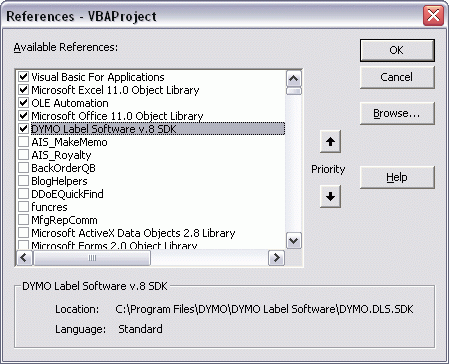
With my reference set, I tried a few different objects without much success. If there’s documentation for this, I haven’t found it. As usual, the object model leaves a lot to be desired. Nevertheless, I persevered and came up with this:
|
1 2 3 4 5 6 7 8 9 10 11 12 13 14 15 16 17 18 19 20 |
Sub TestLabel() Dim myDymo As DYMO_DLS_SDK.DymoHighLevelSDK Dim dyAddin As DYMO_DLS_SDK.ISDKDymoAddin Dim dyLabel As DYMO_DLS_SDK.ISDKDymoLabels Set myDymo = New DYMO_DLS_SDK.DymoHighLevelSDK Set dyAddin = myDymo.DymoAddin Set dyLabel = myDymo.DymoLabels dyAddin.SelectPrinter dyAddin.GetDymoPrinters dyAddin.Open Environ$("USERPROFILE") & "\My Documents\DYMO Label\Labels\BoardFile.label" dyLabel.SetField "Text", "My text goes here" dyAddin.Print2 1, True, 1 Set myDymo = Nothing End Sub |
Let’s step through this and try to see what’s happening. I start with a DymoHighLevelSDK object – what an awful name. This object has two properties: DymoAddin (what an awful name) and DymoLabels. From what I can tell, DymoLabels is only one label, from which I can only conclude…wait for it…they gave it an awful name. I needed to create both the DymoAddin object and the DymoLabels object. I would have thought that I could get the current label from the DymoAddin object, but that doesn’t appear to be the case.
I set the printer I want to use using SelectPrinter and GetDymoPrinters. I guess if you have more than one Dymo printer, GetDymoPrinters returns some delimited string. But I only have one, so I don’t know. Either way, it’s stupid. I discovered that GetDymoPrinters returns my one printer, so I pass that to SelectPrinter and that seems to have worked.
Next I open my .label template file. There’s also an Open2 method, but I don’t know the difference. Am I done bashing the DYMO programmers yet? Not even close. If you have two Open methods, don’t freaking name them Open and Open2. Name them something understandable like Open and OpenPriorVersion.
I tried
|
1 |
Set dyLabel = dyAddin.Open(etc...) |
but got a Type Mismatch error. As far as I can tell, when I call the Open method to the DymoAddin object, the DymoLabels object automatically becomes whatever was open. Idiotic.
My label has one object on it called “Text”, so the SetField method was pretty straight forward. It reminds me of Quickbooks in that there are few, if any, properties and everything is a method.
Finally I tried the Print method, but was rewarded with “Object doesn’t support this property or method.” One of my favorite errors. Out of desperation, I chose the Print2 method. I had to include a third argument for PaperTray, which is utterly ludicrous if you look at the LabelWriter 450. But it worked.
I wanted to set the ShrinkToFit property of the Textbox to TRUE, but I couldn’t figure out how to do it. It did it automatically because I set that “property” when I created the label template, but it would be nice to be able to set it in code.
If I had written the object model, my code would have looked like this:
|
1 2 3 4 5 6 7 8 9 10 11 12 13 14 15 16 17 18 19 20 |
Sub TestLabelNonJerkyWay() Dim myDymo As Dymo.Application Dim dyLabel As Dymo.DymoLabel Set myDymo = New Dymo.Application Set dyLabel = myDymo.Open(“FilePathandName”) myDymo.ActivePrinter = "Dymo 450" With dyLabel.Fields(“Text”) .ShrinkToFit = True .Text = "My text goes here" End With dyLabel.Print 1 myDymo.Close Set myDymo = Nothing End Sub |
Anyway, this post should get a million hits. Or maybe it will just get 100% of the hits from the 12 people who care about this.
I had to set up a job to print barcodes & text to some Dymo printers, I think exactly the same model, a couple of years ago so started playing around with their add-in.
I ended up just setting a sheet’s page properties to fit the label and sending a formatted range to it, seemed easier that mucking about with an add-in that would have to be checked for and installed every time a new PC was used.
Thanks for sharing. Not only for this recipe, but more generally showing that it is possible to dive in blind & figure out a model like this without going nuts.
Sounds like time for a holiday! :-)
I recently purchased Bartender application for printing barcode labels. It is very slick and plays well with Excel and databases.
I’m using twin turbo 450. Does anyone know how to programmically select which roll to print from? If one roll is out of paper, how can I tell it to print from the other roll?
At Charles
With the .print2 method you are Able to Select the tray
0= roll One 1= Roll two
It’s good for me that i find this page. Very usefull info. Thx
Hi,
the second example hods on the second line. user-defined type not defined.
I did include de reference as shown at the beginning and the first exapmle works.
Anonyone knows another clear tutorial on the web?
Thanks.
Thank you very much. That was quite useful.
Many thanks. I was pulling my hair out. The DYMO people should pay you $ for this. Saved me much pain, wish I had found this pearl yesterday.
Is there a way to utilize print2 to print a SS range to the twin turbo like a regular printer without using the dymo application?
Sub Print_Labels()
‘Dim a, b
The following code worked for four years until we got office updates yesterday. Then Error 429, and could not create the object errors.
Using your “”Dim myDymo as DYMO_DLS_SDK.DymoHighLevelSDK” and “Set dyAddin = myDymo.DymoAddin” fixed the problem. Thanks a bunch.
”Dim newMat As String
”Dim qnty
‘Dim myDymo As Object
‘Dim myLabel As Object
‘Dim bCode
‘
‘ Sheets(“Toolkit Orders”).Select
‘
‘Set myDymo = CreateObject(“Dymo.DymoAddIn”)
‘Set myLabel = CreateObject(“Dymo.DymoLabels”)
Thank you so much for this code. Successfully implemented it on a system with Windows 7 / office 2013 (MS Access VBA) / DYMO LabelWriter Twin Turbo.
However, I create each .label file individually via FSO and then print it with the above mentioned code. Works just as fine =)
thank you
Awesome, thanks! Question.. to print multiple labels, do I just wrap these two lines in a loop:
Or, do I have to call the whole function for each label, obviously with a parameter for the text to be printed?
Yes, Jon, I’m pretty sure you can just put those in a loop and not have to do all the other stuff every time.
Thanks a lot for this post as it helped a great deal in quickly being able to print a label from Access. Keep it up!
Thanks for posting this, very helpful since the Dymo documentation is well, whatever…when I run TestLabel in VBA I am getting an error on this line:
Set myDymo = New DymoHighLevelSDK
The error is Automation error, invalid pointer.
Not really a VBA programmer so I am not sure what is the cause of this error. I am trying to help a friend print labels in Excel…any help would be appreciated. Thanks
Make sure you have permission to wherever the SDK (particularly the object library dll) is installed.
@Daniel Sawyer – would you be willing to share your Access solution? Thanks!
No problem – this is for printing a single label. I’ve replaced the variable and field names with generic names and removed error-handling code. Works well in Access 2016 (including Run-Time). Customer would prefer for it to be faster when printing 100+ labels but nothing I was able to do made a meaningful difference.
Thanks much, Daniel. I’m off for a couple of weeks, but will let you know if I was successful. I need it to be a certain format, so I’ll need to play with that as well.
God bless you sir, Thank you very much for this solution. Now i have comunication betwen my excel database and dymo VBA => dymo :D
going to use your solution for monitoring production of parts in production. we book with userforms and barcode scaners and when we book we need instant print from dymo labelwriter 450 ticket. hehe :D
going now to play with variables like text = me.txt.part from userform input heh :D
thank you very much !
Thanks for posting this, very helpful since the Dymo documentation is well, whatever…when I run TestLabel in VBA I am getting an error on this line:
Set myDymo = New DymoHighLevelSDK
The error is Automation error, invalid pointer.
Not really a VBA programmer so I am not sure what is the cause of this error. I am trying to help a friend print labels in Excel…any help would be appreciated. Thanks
i have same problem….
it worked before when i used it on windows 10 latest version of program. But for some reason latest version din’t worked on old XP service pack 3. so i had instal 8.5 version. and now i have same problem like this guy :( any help for fix this ?
You might want to try adding prefix when you dim a Dymo object as shown in two posts above….
Dim myDymo As DYMO_DLS_SDK.DymoHighLevelSDK
I have some dymo software problems and I simply don’t know where to get help, at least dymo support doesn’t give a xxxx.
The problem is that I want to write 7 point text on some small labels. That is possible when using static text, but when I use import data (excel files) the information on text size gets ignored and defaults to 13 point. Dymo acknowledges the limitations and says “there is no fix for your issue”
So I was thinking: what can be done with the SDK?
I am by no means a programmer, but I can do some scripting in python and R. Would you guys recommend diving into the SDK or give up and toss out the Dymo?
Kind regards
Toke
If you can find another option, I say take it. But when I was dealing with this almost 10 years ago now, there wasn’t any better options. At least not that I can see. I’d definitely look around, but if you can’t find something then I’m sure you can do what you need to using the SDK
How can I print 20 labels using a row of of 20 cells into dymo but using this macro in excel
Hi,
I can’t locate the correct reference library, I can’t find “Dymo Label Software v.8 SDK” in the dymo folder. I’ve started going through trial and error but there are hundreds of app extensions. Can anyone help?
Hi Thomas,
I had the same issue, but finally I get the driver on the following link: https://www.dymo.com/en-US/dymo-label-software-v873-windows#
Once you get it installed, you can find the driver in the path of the first image of this post.
Thank you for writing this so long ago. It has been very helpful in deciphering the SDK documentation.
Hi Edgar, that’s worked for me thank you very much!
Tom
You need to search out this software now to find the dll I think
DYMO Label 8.5.4
Then look in
C:\Program Files (x86)\DYMO\DYMO Label Software
for DYMO.DLS.SDK.tlb and add it as a reference in Excel VB or similar.
Chris
I also has to design and save a custom label in say c:\labels\ and adjust the strPath to point directly at my new custom label. “c:\label\customlabel.label” for example.
I added 4 fields (or 6) and adjusted the properties of the 4 (6) text boxes in the label to “LABEL_FIELD_1”, “LABEL_FIELD_2” etc.
Chris
Hey, I am also getting error at line
“Set myDymo = New DYMO_DLS_SDK.DymoHighLevelSDK”
saying invalid pointer and I have tried mentioning every references but it doesn’t work can anybody help here??
Adding to my previous comment I don’t have the printer but I am trying to automate this task for one client can this be because I don’t have the printer ??