I wrote some code to list out all the conditional formatting rules in a worksheet. It wasn’t as easy as I thought it would be. In Excel 2007, MS introduced some new format conditions like Icon Sets and Databars that complicate things. As a result, I didn’t get too fancy with the output.
|
1 2 3 4 5 6 7 8 9 10 11 12 13 14 15 16 17 18 19 20 21 22 23 24 25 26 27 28 29 30 31 32 33 34 35 36 37 38 |
Sub ShowConditionalFormatting() Dim cf As Variant Dim rCell As Range Dim colFormats As Collection Dim i As Long Dim wsOutput As Worksheet Set colFormats = New Collection For Each rCell In Sheet1.Cells.SpecialCells(xlCellTypeAllFormatConditions).Cells For i = 1 To rCell.FormatConditions.Count On Error Resume Next colFormats.Add rCell.FormatConditions.Item(i), rCell.FormatConditions(i).AppliesTo.Address On Error GoTo 0 Next i Next rCell Set wsOutput = Workbooks.Add.Worksheets(1) wsOutput.Range("A1:E1").Value = Array("Type", "Range", "StopIfTrue", "Formual1", "Formual2") For i = 1 To colFormats.Count Set cf = colFormats(i) With wsOutput.Cells(i + 1, 1) .Value = FCTypeFromIndex(cf.Type) .Offset(0, 1).Value = cf.AppliesTo.Address .Offset(0, 2).Value = cf.StopIfTrue On Error Resume Next .Offset(0, 3).Value = "'" & cf.Formula1 .Offset(0, 4).Value = "'" & cf.Formula2 On Error GoTo 0 End With Next i wsOutput.UsedRange.EntireColumn.AutoFit End Sub |
And I got output that looks like this
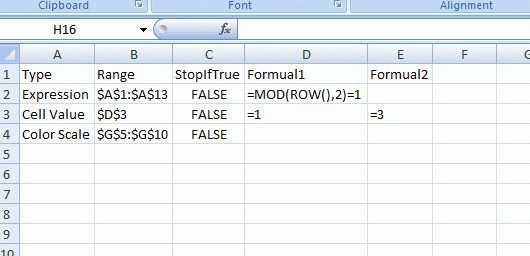
I couldn’t figure an easy way to loop through all the conditional formatting on a sheet. The FormatConditions collection is a property of the Range object not the Worksheet object. So I looped through all the cells with conditional formatting using SpecialCells. Then to remove the duplicates, I put the FormatCondition object into a collection keyed on the AppliesTo address. Collections don’t allow duplicate keys, so I only get one entry for that FormatCondtion that applies to G5:G10. It’s not fool-proof though. I could have two FormatConditions that apply to the same range and only the first would be taken. That was problem #1.
The second problem was that all conditional formatting aren’t FormatConditions. I put a ColorScale on my sheet and it didn’t like
|
1 |
Set cf = rCell.FormatConditions(1) |
The FormatConditions.Item property doesn’t return a FormatCondition object, but a ColorScale object. Many of the properties are the same between the FormatCondition and ColorScale objects so I changed cf to a Variant.
I only listed the Formula1 and Formula2 properties if cf was a FormatCondition and ignored all the other types of objects cf could be. It would take too long to list out all the parameters for all the object types and I lost interest.
To convert the Type to a string, I used this function
|
1 2 3 4 5 6 7 8 9 10 11 12 13 14 15 16 17 18 19 20 21 |
Function FCTypeFromIndex(lIndex As Long) As String Select Case lIndex Case 12: FCTypeFromIndex = "Above Average" Case 10: FCTypeFromIndex = "Blanks" Case 1: FCTypeFromIndex = "Cell Value" Case 3: FCTypeFromIndex = "Color Scale" Case 4: FCTypeFromIndex = "DataBar" Case 16: FCTypeFromIndex = "Errors" Case 2: FCTypeFromIndex = "Expression" Case 6: FCTypeFromIndex = "Icon Sets" Case 14: FCTypeFromIndex = "No Blanks" Case 17: FCTypeFromIndex = "No Errors" Case 9: FCTypeFromIndex = "Text" Case 11: FCTypeFromIndex = "Time Period" Case 5: FCTypeFromIndex = "Top 10?" Case 8: FCTypeFromIndex = "Unique Values" Case Else: FCTypeFromIndex = "Unknown" End Select End Function |
I wish there was a better way to get at enumerations.
Then, of course, I wanted to show an example of the conditional formatting. Well, that wasn’t going to happen. In conclusion, Excel 2007 conditional formatting is great, but trying to recreate the built-in conditional formatting dialog box is the opposite of great.
It gets even more interesting, if you overlap two areas with separate CF’s.
XL2007 will double count the number of FormatConditions in the overlapped areas.
XL2003 on the other hand does not.
The reason appears to be that the SpecialCells(xlCellTypeAllFormatConditions) method returns separate (non overlapped areas) in xl2003 and xl2007 does not.
I got around this (I hope) in my Formats & Styles add-in (in xl2007) by iterating every cell in a rectangular range that encompassed the returned areas.
Be aware… “It can’t be bargained with. It can’t be reasoned with. It doesn’t feel pity, or remorse, or fear. And it absolutely will not stop, ever, until you are dead.”
‘–
Formats & Styles (free)… http://excelusergroup.org/media/p/4861.aspx
[…] took me a long time to figure everything out. If only I had written something like this script, I could list all the conditional formatting rules one by one, and understand it all much […]
I just tried without success Chip Pearson’s code in XL2007 : http://www.cpearson.com/excel/cfcolors.htm
Chip’s code was written for Excel 97-2003. Conditional Formatting was completely revamped in 2007.
This is exactly what I need, but how could I get it to work for Excel 2003?
I have a lot of CF’s in an inherited workbook, and I need to make sure that they are all corrected pointed to the relevant cells.
A sheet that gives the information as shown above woudl save hours of work – if it is possible.
I’ve been looking at conditional formatting as a faster way of applying complex formulae on large amounts of data. The result is blindingly fast but I can’t get access via vba to the fill colour that I’ve applied to the cell. Because the whole range has essentially the same formula applied, when I drill down to look at the cells conditionalformat to check it’s result, they are all the same!
Has anyone managed to find a way around this? Any help much appreciated.
Update in case anyone else has a similar issue…I’ve used Chip Pearson’s code which seems to still work fine in 2007 but have updated the lines where Case xlExpression is true to evaluate a string based on the formula within the conditional formatting but using the current row value rather than the default row value applied to the whole column. Works like a dream :)
Nice piece of work, but in the colFormats.Add line above, ‘1’ should be replaced with ‘i’.
Fixed. Thanks John.
Hi Dick,
I do hope you are still around. I have been looking for a way to document all the conditional formatting rules used on a sheet and I found this very impressive bit of code you wrote.
I have tried to use it in Excel 2010 and it works perfectly, partly.
I have 3 conditions in each cell and only the first expression is listed:
Type Range StopIfTrue Formual1 Formual2
Expression $E$59:$P$59 TRUE =(NOW()>E$7)*(E59<=5)*(E59″”)
Expression $E$60:$P$60 TRUE =(NOW()>E$7)*(E60<=3)*(E60″”)
Expression $E$17 TRUE =(NOW()>E$7)*(SUM($E17:E17)>=$D17/2)
Expression $F$17 TRUE =(NOW()>F$7)*(SUM($E17:F17)>=$D17/2)
Expression $G$17 TRUE =(NOW()>G$7)*(SUM($E17:G17)>=$D17/2)
Expression $H$17:$J$17 TRUE =(NOW()>H$7)*(SUM($E17:H17)>=$D17/2)
Hi Dick,
I do hope you are still around. I have been looking for a way to document all the conditional formatting rules used on a sheet and I found this very impressive bit of code you wrote.
I have tried to use it in Excel 2010 and it works perfectly, partly.
I have 3 conditions in each cell and only the first expression is listed:
Type…………Range………..StopIfTrue…….Formual1………………………..Formual2
Expression……$E$59:$P$59…..TRUE………….=(NOW()>E$7)*(E59<=5)*(E59″”)
Expression……$E$60:$P$60…..TRUE………….=(NOW()>E$7)*(E60<=3)*(E60″”)
Expression……$E$17………..TRUE………….=(NOW()>E$7)*(SUM($E17:E17)>=$D17/2)
Expression……$F$17………..TRUE………….=(NOW()>F$7)*(SUM($E17:F17)>=$D17/2)
Expression……$G$17………..TRUE………….=(NOW()>G$7)*(SUM($E17:G17)>=$D17/2)
Expression……$H$17:$J$17…..TRUE………….=(NOW()>H$7)*(SUM($E17:H17)>=$D17/2)
It would be great if you could help with this.
I would really like to list all 3 conditions (all conditions are expressions).
Even if it can be done for a single cell at a time (i.e. no counting required), it would be of great assistance.
Thank you so much.
Regards,
Henk
@Henk, You got an answer at VBAExpress, what was wrong with that?
Bob, I would be interested in a link to that as I cannot find it on VBAExpress and have a similar request.
http://www.vbaexpress.com/forum/showthread.php?49652-Listing-Conditional-Formatting-on-Separate-Sheet-or-Workbook
Course I can’t get it to work yet…
In case someone like me is searching on just this issue and finds this excellent post, you will want to change
to:
This will make sure the code works for whatever sheet you’re currently viewing in Excel.
ALSO make sure you copy BOTH PARTS of his code; the main macro AND the function! For novices like me, that may not have been immediately obvious…
I love it when people post JUST the solution I needed because they had the same problem – and know how to create a solution! Many thanks to you, Dick, and to the others who provide very valuable information like this on the interwebs! :-)
Thanks for posting that Lori.
I have a ws where the users are often deleting/adding rows which leads to fragmenting of the condition format ranges into hundreds of subsets. The code here is just what I want, but keeps throwing index error on the loop “For i = ” with message: Error # 457 – This key is already associated with an element of this collection”. There are two rules (on same range) in the ws but the formatconditions.count is 1. The faults occurs when the loop repeats.
Using Excel 2010 on Windows 7 Professional.
Any help appreciated!
Mark
Mark: Did you take out the On Error statement. That’s what prevents that message. It prevents it on purpose because I know there will be CFs that apply to more than one cell and I don’t want to include them for every cell in the applies to address, just once per range. If you have an example spreadsheet you can mail to dick@kusleika.com and I’ll take a look at it.
Thanks Dick,
I’ll email the workbook shortly. It would be so much easier if conditional formats were attached directly to the sheet rather than to the range object (IMHO).
regards,
Mark
Mark: If you’re getting an error, it’s because you have Break on All Errors set under VBE – Tools – Options – General. That’s ignoring the error handling.
However, even if you change that to Break in Class Modules, the code still won’t work if you have two CFs that have exactly the same range, which you do. I tried to find a quick way to fix that, but there isn’t one. What I tried to avoid, and what’s causing the problem, is that there are a lot of different “types” of CF and you would have to figure out what type each CF is and deal with it appropriately. There is a Type property, but in my experience that doesn’t tell the whole story.
Thanks Dick for the tip on the ALl Errors setting – changed it and code runs OK.
As you say it only picks up one of the two conditions sharing the same range, but I suppose that’s par for the course with new fangled features – buggy and their objects are not completely accessible to VBA.
Cheers,
Mark
Wonderful code but I believe it only picks up the first instance of a cell’s conditional formatting, i.e. if a cell has multiple rules they don’t all get listed?
Here is a modified version that lists all the rules.
The modifications I did was that I changed the settings for the collection, so all cells with a conditional format is included.
When this code runs through a worksheet where conditional format is applied to a large number of rows and columns, it will take forever, so I restricted the range to
sRange = ActiveSheet.Range(“A6”).CurrentRegion.Address
For Each rCell In ActiveSheet.Range(sRange).SpecialCells(xlCellTypeAllFormatConditions).Cells
After the code has run, I filled the result into a variant to gain some speed advantage when writing the result into the sheet.
The result will have one row per rule per cell in the scanned range.
The filter and extract at the end of the code will select only unique rows, resulting in the correct result with one row for each rule within each range.
The result works for me.
Sub ShowConditionalFormatting()
Dim aResult() As Variant
Dim sRange As String
Dim cf As Variant
Dim rCell As Range
Dim colFormats As Collection
Dim i As Long
Dim wsOutput As Worksheet
Application.ScreenUpdating = False
Set colFormats = New Collection
‘ Modify here to select the desired range
‘ Useful when conditional formatting is applied to huge ranges and
‘ you only want to see the conditional formats for the used range
‘ or any other user specified range
sRange = ActiveSheet.Range(“A6”).CurrentRegion.Address
For Each rCell In ActiveSheet.Range(sRange).SpecialCells(xlCellTypeAllFormatConditions).Cells
For i = 1 To rCell.FormatConditions.Count
On Error Resume Next
‘ Modified to let everything through
colFormats.Add rCell.FormatConditions.Item(i) ‘, rCell.FormatConditions(i).AppliesTo.Address
On Error GoTo 0
Next i
Next rCell
‘ Headers for the
Set wsOutput = Workbooks.Add.Worksheets(1)
wsOutput.Range(“A1:E1”).Value = Array(“Type”, “Range”, “StopIfTrue”, “Formual1”, “Formual2”)
‘ Extract range and filter
wsOutput.Range(“J1:N1”).Value = Array(“Type”, “Range”, “StopIfTrue”, “Formual1”, “Formual2”)
wsOutput.Range(“H1”).Value = “StopIfTrue”
wsOutput.Range(“H2”).Value = “”””””
‘ Resize the Variant range and grab the headers
sRange = Range(“A1”).Resize(colFormats.Count + 1, 5).Address
aResult() = Range(sRange).Value
‘ Move data from the collection into the variant.
‘ Instead of writing cell by cell, the complete array is written
‘ at the same speed as writing one cell
For i = 1 To colFormats.Count
Debug.Print i
Set cf = colFormats(i)
aResult(i + 1, 1) = FCTypeFromIndex(cf.Type)
aResult(i + 1, 2) = cf.AppliesTo.Address
aResult(i + 1, 3) = cf.StopIfTrue
On Error Resume Next
aResult(i + 1, 4) = “‘” & cf.Formula1
aResult(i + 1, 5) = “‘” & cf.Formula2
On Error GoTo 0
Next i
‘ Write the result
Range(sRange).Value = aResult()
‘ Filter and extract
Range(sRange).AdvancedFilter _
Action:=xlFilterCopy, _
CriteriaRange:=Range(“H1:H2”), _
CopyToRange:=Range(“J1:N1”), _
Unique:=True
‘ Delete the redundant data from the variant
ActiveSheet.Range(“A:I”).Delete
wsOutput.Range(“A1”).CurrentRegion.EntireColumn.AutoFit
Erase aResult
Application.ScreenUpdating = False
End Sub
Awesome code!
I’m curious if this can be reversed? That is, take a worksheet with the criteria listed (as you did in your output) and using VBA apply them to other worksheets/workbooks? That way, you could have a set list of criteria that would be portable and could be applied anywhere.
Just curious.
This looks like exactly what I need and is getting some glowing praise but I can’t get it to work in 2003.
I’m pretty fresh to vba, when Lori G says that I need to copy both the sub and the function how do I use both?
THanks.
@RJ, you can read this http://dailydoseofexcel.com/archives/2010/06/28/list-conditional-formatting-in-excel-2003/ but make sure you read the comments too.
What is the latest version of this, containing all of the fixes. I grabbed the original macro, then started running into the same fixes that others had encountered. Do you have a “final version” with all the fixes?
I am refreshing a bit this thread. As I was not 100% satisfied even if it helps me so much!
My concern is that I have some files with conditionals format and after months of copy/paste in it, workbook becomes so heavy and conditional formats so messy…
So I did in two steps :
1. List and copy all conditional formats of working worksheet in a new workbook via macro
2. Identify manually the one I want to keep and suppress the other ones
3. Copy selected ones in my working worksheet and reapply them via macro in a clean way
Hi Laurent….hope you’re still following.
Alternatively anyone else who’s watching is welcome.
I’m doing something similar I think to you. I’m storing the CFs I want to apply in a worksheet, and then with a VBA macro, reading them and trying to apply them.
So in a cell in my CF Worksheet, I will have a formula such as =LEFT(G8,3)=”Bob”
I will try to apply this value to a CF which I create:
The trouble I have is that when I go to examine the CF I have created, the formula is shown as follows.
="=Left(G8,3)=""Bob"""So it puts quotes around my expression, and hence doesn’t work as intended.
Anyone know how I can avoid this?
More complete code below.
FYI: I wrote a similar VBA function and posted it to StackOverflow. It outputs all of the conditional formatting for the Active Sheet to the Immediate window.
https://stackoverflow.com/a/52204597/1898524
You might be interested in my CFBackup and CFRestore macros to backup and restore the active sheet’s conditional formatting using named ranges that auto-adjust to row/column changes. See
http://dailydoseofexcel.com/archives/2015/06/08/easy-way-to-back-up-cf-formats/#comment-1045895