In Maxif, Minif Functions, I discussed finding the maximum or minimum for a subset of data based on certain criteria. If you have more than one criterion, the formulas are roughly the same.
In this example, I have three items in four different PriceZones. I want to find the most expensive and least expensive of each item by PriceZone.
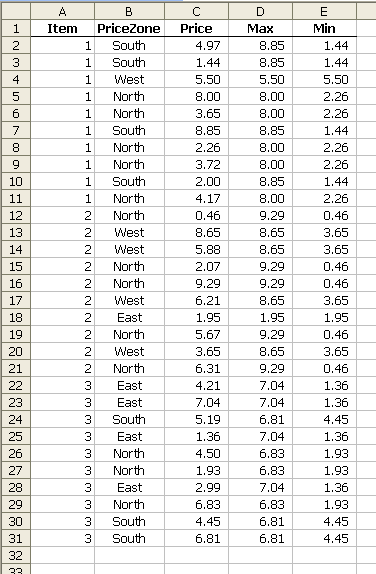
For the max, I simply multiply another array
{=MAX(($A$2:$A$31=A2)*($B$2:$B$31=B2)*($C$2:$C$31))}
The first set of parentheses will return zero if there’s no match. Same for the second. The third set returns the prices. When I multiply them together, I get a few non-zero numbers and a bunch of zeros. Then the formula takes the MAX.
If I do the same thing with MIN, I’ll always get zero. When the MIN criterion don’t match, I need to return a string so that MIN will ignore it. To do that, I nest some IFs
{=MIN(IF($A$2:$A$31=A2,IF($B$2:$B$31=B2,$C$2:$C$31,""),""))}
That’s still array entered just like MAX. Now I’m returning empty strings (ignored by MIN) when there’s no match and the price when there is a match.
These examples use two variables, but you can go more if you like. The MAX function is only limited to how long you want to wait for your formulas to calculate. The MIN function, because of the nested IFs, is limited to seven in 2003 and earlier. Although I fully expect the Excel Hero to stop by and show us how to get around that limitation.
>Thanks for the suggestion, Melisssa
One more option, still array enter
=MIN(IF((($A$2:$A$31=A2)*($B$2:$B$31=B2))>0,$C$2:$C$31))
Regards
Wait, you guys aren’t the Excel Heroes?
Dick, happy to oblige…
Elias’s approach is a good one in my opinion as it only burns one IF() regardless of how many variables you need. But if you want to do it with zero IF() functions, here are a couple of ways:
Array entered:
=MIN($C$2:$C$31*(($A$2:$A$31=A2)*($B$2:$B$31=B2)*-1000+1001))
or if you don’t like CSEs:
=SUMPRODUCT(MIN($C$2:$C$31*(($A$2:$A$31=A2)*($B$2:$B$31=B2)*-1000+1001)))
The constants of -1000 and +1001 are arbitrary, but the first needs to be as big or bigger (absolute value wise) as the largest value in column C, and the second, that plus one. The constants could be replaced by referencing a helper cell or named formula.
As Elias’s approach, these formulas can be extended to handle as many variables as you would like.
Not sure if you were using sarcasm or not, but I certainly hope I have not offended you. But to set the record straight, I’m not the Excel Hero. My blog is dedicated to helping my readers become Excel Heroes at their respective companies. I made that clear in my first couple of posts.
Regards,
Daniel Ferry
excelhero.com/blog
Dick,
When you use IF within an array formula as you do above, there is no need for the second argument(s), let it default to FALSE, it works as well
=MIN(IF($A$2:$A$31=A2,IF($B$2:$B$31=B2,$C$2:$C$31)))
Daniel,
You should compare your results against Dick’s (and Elias’) when some of the rows are blank.
Another Excel Hero :-)
Bob,
Well blank rows were not part of Dick’s example.
But if that were important and you didn’t want to use any IF() functions, then:
Array entered:
=MIN(($C$2:$C$31+1000*(C$2:$C$31=0))*(($A$2:$A$31=A2)*($B$2:$B$31=B2)*-1000+1001))
or for non-CSE:
=SUMPRODUCT(MIN(($C$2:$C$31+1000*(C$2:$C$31=0))*(($A$2:$A$31=A2)*($B$2:$B$31=B2)*-1000+1001)))
The only change here is the enhancement to the reference to column C at the beginning, to ensure that blanks are not considered.
Regards,
Daniel Ferry
excelhero.com/blog
No sarcasm. I love your blog and your *are* an Excel hero whether you think so or not. I’m intrigued, if not sold, on eliminating IFs in formulas.
Well, thanks Dick.
I’m relieved.
I realize that I may appear at times a zealot for the elimination of IFs. But I’m really not. I use them myself everyday. I just think that they are overused, which can quickly lead to formula chaos. I discovered long ago that I can learn a lot about formula crafting by setting myself the challenge of reducing IF() function usage.
Doing so has taught me to think outside of the box and I often devise unusual (and sometimes elegant) solutions to spreadsheet challenges that I would never have thought of otherwise. It has worked for me and that is why I promote it. So, stepping off the soap box now… :)
Regards,
Daniel Ferry
excelhero.com/blog
Whilst I might be prepared to agree that it is worth trying to eliminate IFs for the purpose of finding alternatives that may be deployable elesehwere, I see absolutely NO point in managing to eliminate an IF by adding an obfuscation like *-1000+1001. If you had used some commonly accepted large number form, such as 9999E3 (or whatever that nonsense number is) or 99^99. and so on, it might be be better but I would argue even then that it is not because it is far from obvious as to what it means. As such, it detracts from the maintenance and auditability of the formulae, and in most instances more time will be (should be) spent on these areas than on creating the spreadsheet.
Bob,
The point IS to get people to think about it.
Every conceivable technique has a mix of pros and cons over the spectrum of faster, shorter, easier to maintain/audit, or simpler. I think that anyone would agree that a formula with a bunch of branching rates poorly in all of these categories.
Dick’s example used two variables and thus two nested IF() functions. He then pointed out that the example technique was limited to just seven variables in versions of Excel prior to 2007.
Obviously, if you need more variables, you need a different technique. I pointed out that Elias’s approach was good on that front. And then showed how it could be taken further if one so desired. What’s the harm in that? Obfuscation? That’s a little harsh – it’s an enabling technique, and not even a complicated one. Of course you could use an “accepted” (as you put it) large number, but why? They are massive overkill and all of them require a lot of processing overhead for no benefit whatsoever.
In actuality I’d most likely use Elias’s approach, but the exercise of figuring out that alternative is beneficial and might spark an idea to an unrelated problem.
I would not have written more on it here, if it were not for your comment on the blanks. Now with your second object, I get it. You don’t like the technique. I’m willing to bet there’s more than one reader who will like the thought process behind the solution. My comment is for them.
Regards,
Daniel
Daniel,
I think Bob is speaking from experience. He is simply pointing out that the introduction of one or more constants into a formula is a major no-no and violates good spreadsheet practices. The confusion it creates and the inability to audit someone else’s work far outweigh any gain that might come from it. I often scold analysts/engineers in our office when I see constants in their formulas.
Is your technique creative? Yes. Wise? No.
Jason
Jason,
Thanks for the comment and I appreciate what your saying. As I said, I would use a different approach myself.
I too come at this with 25+ years of daily spreadsheet development. I’m not sure I’d agree with you “wise” assessment.
My point was to get readers to think, nothing more.
Daniel
Daniel,
Nothing wrong with getting people to “think” outside the box and suggesting alternative solutions.
But when it gets people thinking in the wrong direction (esp. beginners), that’s the problem. You don’t want to teach bad habits, do you? Inserting constants into a complex formula to achieve your goal is very poor design and can cause havoc to the designer and users of the workbook. It shouldn’t be done unless absolutely necessary.
If my son asks me for suggestions on the best way to get $10,000 to start a business, I’m going to give him suggestions. Each will have pros/cons. Robbing a bank, of course, is one option but I’m certainly not going to suggest it. I want him to “think”, but not think about options that break the law.
Not trying to be overly critical here…but constants in formulas is a sore point for me.
Jason,
Couldn’t agree more.
If you read my first comment that started all this, you’ll see that I said the constants could be replaced by a named formula. I should have said should be replaced instead of could be replaced.
But that’s beside the point.
The constants were used in the example because it makes it clearer to the reader what sort of logic is behind the technique, rather than referring to a named formula that’s not available on this blog page.
I think this is much ado over nothing.
Nothing wrong with getting people to think about a formula, but not a manager who is rushed at month’s end, who maybe isn’t a natural formula master, and who won’t get the unexpected constants in the formula. Or yourself in six month’s time, when you’ve forgotten your smart trick for eliminating an IF statement.
Sure, reduce IFs and nested functions of all types. But not at the expense of comprehension.
In fact, I’ll use plenty of helper columns, unlike a lot of devs who pride themselves on one-cell megaformulas. My approach avoids these incomprehensible mutant formulas, and makes SUMPRODUCT easy to implement in a visual way.
ooooooooh – it’s like having a troll….
Another way, just for the hell of it, using LARGE:
MAX: {=LARGE(($A$1:$A$8=A11)*($B$1:$B$8=B11)*($C$1:$C$8),1)}
MIN: {=LARGE(($A$1:$A$8=A11)*($B$1:$B$8=B11)*($C$1:$C$8),SUM(($A$1:$A$8=A11)*($B$1:$B$8=B11)))}
The latter just counting the number of ‘matches’ to skip down to the lowest non-zero number, aka the min.
Rob, are you serious, a troll?
Dick, I must apologize. I never thought that taking you up on your expectation would lead to all this.
Jon, I suggested using helper cells and or named formulas.
Thanks for all the great information guys. Really had no idea my question would spark such debate!
Daniel,
Awesome formula! I admit I don’t understand the role the two constants play in:
=SUMPRODUCT(MIN($C$2:$C$31*(($A$2:$A$31=A2)*($B$2:$B$31=B2)*-1000+1001)))
can you explain?
Frank,
To understand why it works, you first need to understand why Dick’s MAX formula:
{=MAX(($A$2:$A$31=A2)*($B$2:$B$31=B2)*($C$2:$C$31))}
works, while changing that MAX to MIN fails every time.
An easy way to visualize the problem is to take the first two terms and ARRAY-ENTER them:
=($A$2:$A$31=A2)*($B$2:$B$31=B2)
To be clear you need to pick a column and select all the cells in that column from Row 2 through Row 31. With that range selected, type the above formula into the Formula Bar and then press Control-Shift-Enter simultaneously on the keyboard.
Doing so will reveal that some of the rows in Dick’s table will result in a numeric value of “1?, but most will be zero. When we apply a MIN function to those results, the function sees those zeros and correctly returns zero as the minimum. The few cells with the “1? in them are the ones we want to find the minimum for, but the zeros are getting in the way – so we need a way to ignore them. There are a lot of different ways to do so. Dick’s method works just fine, but is limited to seven criteria variables. Elias’s method solves the problem quite well and uses just one IF function for an unlimited number of variables. Rob provides yet another avenue of attack.
I’m sure there are many others. But since you are asking about the one I offered, which like Rob’s completely eliminates all IF functions, do this.
In the next column over from the one where you just entered the CSE formula above, follow the exact same procedure, but append the first constant:
=($A$2:$A$31=A2)*($B$2:$B$31=B2)*-1000
If you did this correctly, you’ll notice that all the zeros remain, but the few cells that contained the numeric “1? before now contain a negative 1000.
Finally, in the next column to the right of that do the exact same thing, but this time with both constants:
=($A$2:$A$31=A2)*($B$2:$B$31=B2)*-1000+1001
Now, you’ll see that all the zeros are changed to 1001, and the cells we are interested in simply have a numeric “1? in them. When we apply the MIN function now, the zeros (which are now 1001) do not get in the way, and the MIN function is free to work on the cells we ARE interested in.
The SUMPRODUCT wrapper just lets it work without doing the array entry (CSE).
As you can see from going through this process, the magnitude of the two constants is massive overkill in this situation. I used them because they are nice round numbers. For it to work with other values, the important thing is that the second constant be a value of one higher than the first. If you don’t like working with constants (as obviously some don’t) you could replace them like this:
-1000 becomes -MAX($C$2:$C$31)
and
+1001 becomes +MAX($C$2:$C$31)+1
Regards,
Daniel Ferry
excelhero.com/blog
Daniel,
“I should have known but I chose to be ignorant”. The “best practices” arguments expressed in the comments lured me into the box of Ignoramus Et Ignorabimus. So thanks for your way “out of the box”.
Frank,
Since your latest comment is ambiguous, I’m not going to respond.
Hi,
I am calculating royalty payments in an NPV model I am putting together for an asset our company is interested in outlicensing. I have two conditions and each can have one of two outcomes: Issued or Pending and US or ex-US, such that if the asset is protected by an issued US patent then the royalty rate would be 12.5%, if the patent is issued ex-US, the royalty rate would be 10%; if the patent is pending in US, the royalty rate would be 5% and if it is pending ex-US it would also be 5%. I’ve created the following formula, which unfortunately does not work completely (it misses one possibility) and I have no idea how to fix it. HELP Please and thank you.
Monika
=IF(‘Static Assumptions’!B19=”Issued”, “12.5%”, IF(‘Static Assumptions’!B20=”US”, “5%”, “10%”))*H10′ (H10 in this case is net revenue)
Thank you for taking the time to respond, but this does not work. I have a drop down menu on the assumptions page that pertains to patent status (choices are either issued or pending) and territory (either US or ex-US). On the main NPV page, there should be a different value for each of the four possible combinations: Issued/US, Issued/ex-US, Pending/US and Pending/ex-US.
Does anyone else have any suggestions?
Thanks,
Monika
You said “if the patent is pending in US, the royalty rate would be 5% and if it is pending ex-US it would also be 5%”
So if the patent is pending anywhere, it’s 5%. If it’s not pending, it’s one of the other two percentages. That’s three possibilities, not four. Can you give me an example where my formula produces the wrong result?
I used the following formula, which seems to work:
=IF((AND(‘Static Assumptions’!B20=”US”,’Static Assumptions’!B19=”Issued”)),12.5%,(IF((OR(‘Static Assumptions’!B20=”ex-US”,’Static Assumptions’!B19=”Issued”)),10%,5%)))*G10
Your suggestion to rework my original formula was not returning the right values.
Thank you again for taking the time to respond.
Monika
The logic might be clearer as
=IF(‘Static Assumptions’!B19=”Issued”,IF(‘Static Assumptions’!B20=”US”,12.5%,10%),5%)*G10
Thank you, but when I type this formula as you suggest, excel warms me that “The formula that you typed contains an error”; are there parentheses missing?
Monika
The problem is the blog software used here which replaces single quotes (decimal character code 39) with a character which looks similar but has decimal character code 146. Likewise for double quotes (decimal character code 34) replaced by decimal character code 148.
Looks like formulas need to be embedded between code tags.
Thank you – this is much simpler than my version of the formula; I’ve checked both formulas and they return identical values.
Thanks again, much appreciated.
Monika
Daniel,
I know this thread is stale, but I just came across it, and couldn’t help but experiment with your solution. (I’m a big fan of cool alternatives, for the knowledge and brain-flexing, if not for actual implementation.)
It seems that if there is a value of 0 or less, anywhere in the data, your formula flubs it.
As much as I appreciate the cool factor of your formula, this is a vulnerability too great to accept, even for a theoretical answer. Am I implementing it wrong?
The wise-or-otherwise debate, reminds me of how, once, many years ago, at my first programming job, I proudly showed off a snazzy bit of programming legerdemain, to my boss. He acknowledged my cleverness, and then added that if I were ever to use it, or anything like it, in any of the company’s projects, he’d fire me on the spot!
UniMord
Following worked for me, with more than one if condition
May I resurrect this post – first by saying well done everyone for their contributions
Next wishing all a Happy New Year in 2013
Finally by asking
Following from Daniels MIN solution using SUMPRODUCT
Why not avoid CSE arrays by finding the MAX using:
=SUMPRODUCT(MAX(($A$2:$A$31=A2)*($B$2:$B$31=B2)*($C$2:$C$31)))
Now that the thread is even more stale…..
I thought that the original goal was to find the minimum for each price zone. I have a similar problem where I am trying to find a minimum time per employee by UserID and day of the week. I tried this formula, but it’s returning the minimum time for all UserIDs, not the specified UserID, so I think I must have done something wrong or misunderstood the original solution.
I’m trying to convert an obnoxious .csv export of the employee schedule into something that looks like the excel roster that my company has been using (until someone gets around the the SQL query to make it magically happen without the export). The report looks something like –
DOW START END ACTIVITY USERID
MON 11:30 13:50 SCHED SMITHM
MON 13:50 14:00 BREAK SMITHM
MON 14:00 16:00 SCHED SMITHM
MON 16:00 16:30 MEAL SMITHM
MON 16:30 18:40 SCHED SMITHM
MON 18:40 18:50 BREAK SMITHM
MON 18:50 20:00 SCHED SMITHM
…needs to become a roster where the schedule is laid out next to the name in a row more like this…
MONDAY
11:30-20:00
…which seems like it’s going to require some array lookup and min/max and concatenate. Add in that when you concatenate a time, Excel likes to convert it to a decimal so it needs the text conversion, as well. No one cares about the breaks, but I’ll also have a column to calculate the meal duration. There are two different weekly meetings, so I’ll also need to do a look up that will find the meeting by activity type and day of the week and then concatenate to populate the cell with the day of the week and the time.
If anyone is still monitoring this and has any input the help would be greatly appreciated.
Sophi: If your data is in A1:E9 and you put SMITHM in I2 and MON in J2, then
Enter with control+shift+enter, not just enter.
I am trying to use the formula {=MAX(($A$2:$A$31=A2)*($B$2:$B$31=B2)*($C$2:$C$31))}
on a set of data as
Date Month Year Sum
23 Dec 2013 Dec 2013 0 2090 2090
30 Dec 2013 Dec 2013 0 2090 2090
06 Jan 2014 Jan 2014 0 0 0
13 Jan 2014 Jan 2014 0 0 0
20 Jan 2014 Jan 2014 0 0 0
27 Jan 2014 Jan 2014 0 0 0
03 Feb 2014 Feb 2014 0 1844 1844
10 Feb 2014 Feb 2014 0 1844 1844
17 Feb 2014 Feb 2014 0 1844 1844
24 Feb 2014 Feb 2014 1844 1844 1844
03 Mar 2014 March 2014 2090 2090 2090
10 Mar 2014 March 2014 2090 2090 2090
17 Mar 2014 March 2014 2090 2090 2090
08 Dec 2014 Dec 2014 2090 2090 2090
15 Dec 2014 Dec 2014 2090 2090 2090
22 Dec 2014 Dec 2014 2090 2090 2090
29 Dec 2014 Dec 2014 2090 2090 2090
05 Jan 2015 Jan 2015 2090 0 0
12 Jan 2015 Jan 2015 0 0 0
the forumla in the two end columns are
{=MAX(($E$2:$E$57=2014)*($D$2:$D$57=D2)*($F$2:$F$57))}
or
{=MAX(IF($E$2:$E$57=2014,IF($D$2:$D$57=D2,$F$2:$F$57,””),””))}
but I cannot get them to work, as they both keep returning the max value for all of Dec, and not Dec 2014.
Could anybody assist me by pointing out where I am going wrong with this formula?
Thank you very much.
Sorry, please ignore my daftness, I was trying to pool a max for a particular timeframe, by adding that year into the formula, rather than comparing the Array to the cell in question – i.e. I used
{=MAX(($E$2:$E$57=2014)*($D$2:$D$57=D2)*($F$2:$F$57))}
but should have used
{=MAX(($E$2:$E$57=E2)*($D$2:$D$57=D2)*($F$2:$F$57))}
My appoligies.
These formulas have been very useful to me. Thanks so much. One challenge I’ve faced is when the maximum is a negative number. The MAX array formula only returns 0 due to the logic. Any guidance on how to correct?
Do the MAX formula just like the MIN formula and it won’t return zero.
Hello! I have a related question. I have some data where I’m tracking the dates I requested a piece of information in column A and the date I received a response in column B. I would like to find the oldest/latest request date based on responses received in a particular month, found in cell A4. For example, I’d like to know the oldest request date from all the responses I received in the month of January. I’ve tried using the MIN formula to find the oldest request date and two IF formulas to specify the response date range, but Excel has been returning a VALUE error:
=MIN(IF(‘Number of Days’!B:B,”>=”&DATE(2014,MONTH(A4),1),IF(‘Number of Days’!B:B,”<"&DATE(2014,MONTH(A4)+1,1),'Number of Days'!A:A,""),""))
I know I'm combining a lot of formulas, so it could be my syntax is wrong somewhere and I've missed it. If anyone can catch my error or suggest an easier way, I'd really appreciate it!
Since I’m doing array formulas today:
If Receipt date is column A, response date is Column B, and month of the response date is Column C, with the month number in A4, then:
will give you the earliest receipt that was responded to in the month of A4.
Where C:CA4 should be:
C:C “not equals” A4
( The less than, greater than symbols don’t work here)
Hiya Doug and Audrey. I’ve got a new post scheduled for publication here in a couple of hours time that discusses this.
Doug: I may have messed up your formula trying to fix it. You can post it again with <code> tags around it to preserve any special characters, or email it to me and I’ll fix it in the comment.
If your dates are B5:B8 and your month number is in A4, I’d use this array formula (enter with Ctrl+Shift+Enter)
Dick – I wondered what happened to it! I should have read your comment about code tags (or remembered it).
It should be:
We want to find the earliest date from column A that has Month = A4 in Column B, so your alternative should be:
which is simpler, but does require the entered range to be filled with data.
Both versions need to be entered with Ctrl-Shift-Enter to give the right answer.
I happened to it. I went in and cleaned it up. Incorrectly. Sorry ’bout that.
Thank you so much. I’ve been searching for a way to find the next date for a specific location from a list of locations and dates. This was the first suitable method I found and it works perfectly.
HI,
I want to find the min value of price with two conditions while one is a specific model and another is category.
i tried using the formulas, however, am getting zeros only.
details pasted as below, please help as what is wrong in the formulae :
MIN(IF(Summary!$F$2:$F$45175=”Pedal”,IF(Summary!$M$2:$M$45175=Sheet1!$B$2,Summary!$N$2:$N$45175)))
Using the above formula – is is possible to return the ROW value of this array?
None of these work:
{=ROW(MIN(IF($A$2:$A$31=A2,IF($B$2:$B$31=B2,$C$2:$C$31,””),””)))}
{=MIN(IF($A$2:$A$31=A2,IF($B$2:$B$31=B2,ROW($C$2:$C$31),””),””))}
any suggestions?
tks
@Steve you want to return the row with the smallest value? Say you have the MIN array formula in column D. You could use this formula
The second argument of MATCH is an array that is the same as the MIN array. MATCH finds the position of the MIN in the array. If all of your prices are unique, you can use a simple, non-array, match. But with the array, you can have the same prices for two Item/Zone pairs and still get the correct result.
how to extract the report of Min and Max date for below ID’s
report should be something like “789” “C” “6 july” “16 Oct”
Id Name St. Dt. Ed. Dt
123 A 26-May-15 31-Dec-15
456 B 12-Aug-15 11-Sep-15
456 B 14-Sep-15 16-Oct-15
456 B 3-Aug-15 11-Aug-15
789 C 12-Aug-15 28-Aug-15
789 C 31-Aug-15 16-Oct-15
789 C 6-Jul-15 31-Jul-15
789 C 3-Aug-15 11-Aug-15
Daniel,
I too, had Melisssa’s query and have indulged myself to find the truth/sense/importance over the constant *-1000+1001 after viewing so and read all the comments/debate above. Both of you did have your own stand on efficiency/auditability of formulas, that’s why I wont be having a side here.
However,it would have been more safe and thus crucial, to put
“*(-MAX($xx:$xx)+(MAX($xx:$xx)+1))”
in your formula instead of putting “*-1000+1001” and then putting a note below “…named formula”
for the sake of those who are too lazy to read or those who have resulted of just copy-pasting formulas due to urgency like me. :D
I would have not been bothered by reading all the way down to your debates if I haven’t encountered errors from using the latter. Just saying, if you get my point too :D
I’ve been using Max Ifs and Min Ifs for a while now to pull out the highest and lowest rent charge accross 20 areas, this all worked fine (each area contains roughly 600 properties). We have now broken down each of these areas into 4, so there are now 100 small areas and the formula no longer work (this was not my decision and i am not able to change it).
The size of the data set has not changed so it seems that there are too many variables for it to handle. I have played around with the formula and it seems that at above 60 different areas it stops working.
Has anyone encountered this problem and does anyone have any suggestions on how to fix it?
@Steve2: There aren’t any limitations that I know of. If you want to post what your formula is and some sample data, we can take a look. Or you can send it to dick@kusleika.com if you prefer.
Hello,
Could really use some advise! I have a spreadsheet, and I need to find the earliest date that an apple was red and eaten by Sue.
Column D contains the type of fruit, Column G contains the color of the fruit, Column X contains who ate the fruit. The dates are all in column Q. Can you please assist?
Thanks so much!
Crystal
Crystal:
enter with Ctrl+Shift+Enter to make it an array formula.
Thanks Dick! I’m getting a date, but not the oldest date in column Q :(.
Also, if I want another set of criteria considered for the cell below this one in a table, it seems to copy this same initial formula for all 4 of my rows, when I’d want different information in the formula. For example, in the cell (row) below, I’d want the result of number of Cherries that were Red that were eaten by Sue.
REVISION
Yes, Dick, thank you!! Actually, this did work!!
But my other question would still be:
if I want another set of criteria considered for the cell below this one in a table, it seems to copy this same initial formula for all 4 of my rows, when I’d want different information in the formula. For example, in the cell (row) below, I’d want the result of number of Cherries that were Red that were eaten by Sue
Is this possible?
Thanks again!!
Crystal: Every place that I have a word in double quotes (like Apple, Red, and Sue), you can turn that into a cell reference. E.g.
Now if you copy that down, A1 becomes A2, B1 becomes B2, etc.
You’re the best, thanks so much!! :)
Hello! Seeking additional advice please!
If I have this below formula, and my data contains some duplicate items, how can I create a formula to just count duplicates once in my total?
=COUNTIFS(Sheet0!R:R,”=”&TODAY(),Sheet0!D:D,”Apple”,Sheet0!X:X,”Sue“)
I want to just count items once that are in duplicate across Column D, E and I, rather than count those items multiple times.
Example (want to count once):
Fruit State Cost
1)Apple Ripe Free
2) Apple Ripe Free
Thanks!
Crystal