The COM Add-in (Component Object Model) toolbar button is not on any toolbars by default. You have to add it and then click on it to get to the COM Add-in dialog. First, right click in a blank area around the toolbars and choose Customize
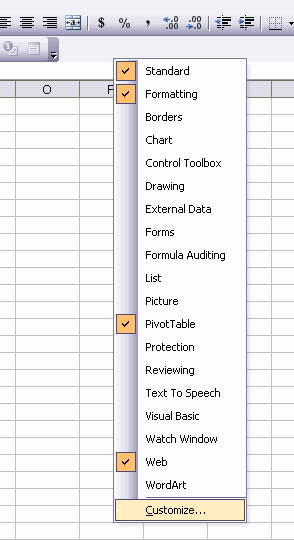
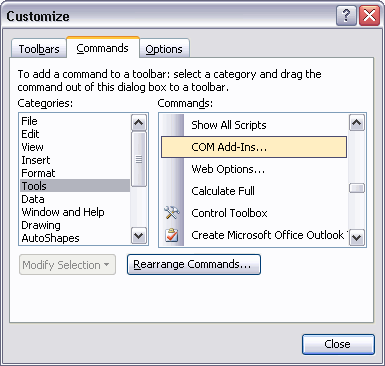
Go to Tools on the left and COM Addins on the right
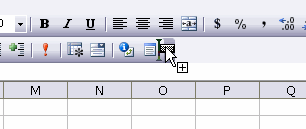
Drag it onto an existing toolbar – the I bar tells you where it’s going to go
Now it’s on the toolbar, so click it
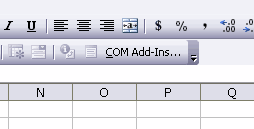
And you get this dialog. It shows that I have one COM Add-in that it’s not loaded (unchecked).
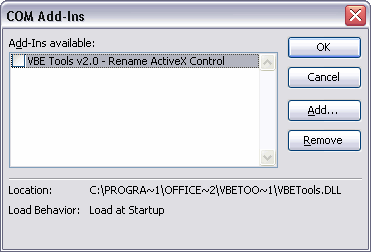
The downside is that this dialog won’t show COM add-ins installed for all users. Microsoft did this so add-ins installed by Admins can’t be removed by limited access users. If you want to see all the COM add-ins installed on your system, there’s a neat little (free) utility from Nirsoft called Officeins (http://www.nirsoft.net/utils/officeins.html).
If you don’t need a permanent toolbar modification, here’s a one-liner for the VBA Immediate window:
set c = CommandBars(1).Controls.Add(Id:=3754): c.Execute: c.Delete
Not sure if that Id is good outside of Excel 2003.
hmm.. thank you very much. usefull information
In the excel.programming group
Subject: Listing installed COM add-ins, 13 Feb 08
Dim cai As COMAddIn
For Each cai In Application.COMAddIns
Debug.Print cai.Connect, cai.ProgId, cai.Description
Next
Eric’s one liner works in XL2000 (the id is good)