This is the continuing saga of putting records on a userform. I followed up on Rob’s suggestion of the ListView control and I like it. I wouldn’t call it its use intuitive, but once you get the hang of it, it’s O.K.
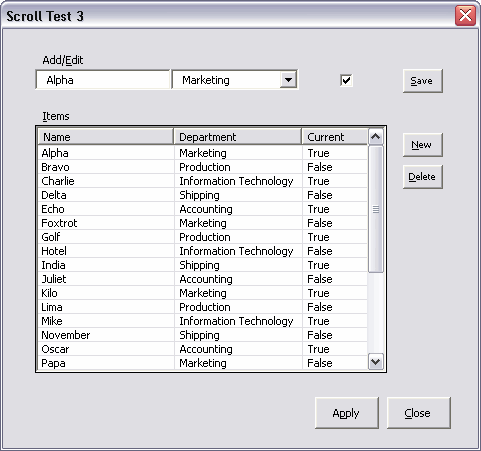
I don’t have this whole thing figured out yet, but I’ll show you what I do have. Suggestions and corrections are always welcome. It all starts with the showform3 procedure:
|
1 2 3 4 5 6 7 8 9 10 11 12 13 14 15 16 17 18 19 20 21 22 23 24 25 26 27 28 29 |
Sub showform3() Dim colRecords As Collection Dim ufScroll As UScroll2 Dim i As Long 'Fill a collection with CRecord objects – pretty much the same code 'as the previous posts, just put into a function. Set colRecords = New Collection Set colRecords = FillRecords 'Create a new instance of the userform rather than relying on the 'default instance Set ufScroll = New UScroll2 'Load the records into a custom property of the userform Set ufScroll.Records = colRecords ufScroll.Show 'Show the form. Code is suspended at this point 'Get the new records, if any, from the userform’s property Set colRecords = ufScroll.Records 'Print out the records to make sure I didn’t miss something For i = 1 To colRecords.Count Debug.Print colRecords(i).Name, colRecords(i).Department, colRecords(i).Current Next i End Sub |
When the Show method is called, the Activate event fires. In addition to filling the Department combobox, the Activate event adds three columns to the ListView via the ColumnHeaders.Add method. I set the first two column’s width equal to the controls above and just threw in a number for the Current column.
Next, I set a few properties for the ListView. The HideColumnHeaders property is False by default, but I set it in code explicitly. The View property is important if you want columns. Setting View equal to lvwReport is similar (exactly?) like choosing Details when you’re viewing a Windows Explorer window. The default view is like the List view in Windows, where subitems are not shown. Finally I show gridlines because I like the way it looks.
In the next section, I loop through all the CRecord objects in the collection and add them to the ListView. I add ListItems using the Name property and add SubItems 1 and 2 to hold the Department and Current properties. Finally, I run the ItemClick event to populate my edit controls.
|
1 2 3 4 5 6 7 8 9 10 11 12 13 14 15 16 17 18 19 20 21 22 23 24 25 26 27 28 29 30 31 |
Private Sub UserForm_Activate() Dim i As Long Dim li As ListItem Dim vaDepts As Variant vaDepts = Array("Accounting", "Marketing", "Production", "Information Technology", "Shipping") For i = LBound(vaDepts) To UBound(vaDepts) Me.cbxDept.AddItem vaDepts(i) Next i With Me.ListView1 .ColumnHeaders.Add , , "Name", Me.tbxName.Width 'Add columns .ColumnHeaders.Add , , "Department", Me.cbxDept.Width .ColumnHeaders.Add , , "Current", 50 .HideColumnHeaders = False 'set some properties .View = lvwReport .Gridlines = True For i = 1 To mcolRecords.Count 'populate listview Set li = .ListItems.Add(, , mcolRecords(i).Name) li.SubItems(1) = mcolRecords(i).Department li.SubItems(2) = mcolRecords(i).Current Next i ListView1_ItemClick .ListItems(.SelectedItem.Index) 'fill edit controls End With End Sub |
The ItemClick event fills the textbox, combobox, and checkbox so the user can edit the selected item. The other ListView event I use is the ColumnClick event. I haven’t quite got the sorting thing figured out yet, but I can toggle ascending and descending on the Name column.
|
1 2 3 4 5 6 7 8 9 10 11 12 13 14 15 16 17 18 19 20 21 22 23 24 25 |
Private Sub ListView1_ColumnClick(ByVal ColumnHeader As MSComctlLib.ColumnHeader) If ColumnHeader.Text = "Name" Then Me.ListView1.Sorted = True Me.ListView1.SortKey = 0 If Me.ListView1.SortOrder = lvwDescending Then Me.ListView1.SortOrder = lvwAscending Else Me.ListView1.SortOrder = lvwDescending End If Else Me.ListView1.Sorted = False End If End Sub Private Sub ListView1_ItemClick(ByVal Item As MSComctlLib.ListItem) With Item Me.tbxName.Text = .Text Me.cbxDept.Value = .SubItems(1) Me.chkCurrent.Value = .SubItems(2) End With End Sub |
The Delete and New buttons’ code is shown below. The Delete code is pretty straight forward. The mbIsDirty variable stores whether changes have been made. This will come into play in the Close button code. The New button code clears the edit boxes and set the focus ready to create a new list item. It also changes the caption of the button next to the edit controls from Save to Add in an attempt to make it intuitive for the user.
|
1 2 3 4 5 6 7 8 9 10 11 12 13 14 15 16 17 18 19 |
Private Sub cmdDel_Click() With Me.ListView1 .ListItems.Remove .SelectedItem.Index End With mbIsDirty = True End Sub Private Sub cmdNew_Click() Me.tbxName.Text = "" 'Clear the edit controls Me.cbxDept.Value = "" Me.chkCurrent.Value = False Me.tbxName.SetFocus Me.cmdCommit.Caption = "Add" 'change the commit button caption Me.cmdCommit.Accelerator = "A" End Sub |
The Commit button, which either says Save or Add depending on whether the user is editing an existing record or adding a new one, uses the code shown below. Depending on the caption of the button, it adds a new ListItem (and related SubItems) or changes the currently selected ListItem. It then changes the button’s caption and updates mbIsDirty to reflect that the data has changed.
|
1 2 3 4 5 6 7 8 9 10 11 12 13 14 15 16 17 18 19 20 21 22 |
Private Sub cmdCommit_Click() If Me.cmdCommit.Caption = "Add" Then With Me.ListView1.ListItems.Add(, , Me.tbxName.Text) .SubItems(1) = Me.cbxDept.Value .SubItems(2) = Me.chkCurrent.Value .Selected = True .Top = Me.ListView1.Top End With Else With Me.ListView1.ListItems(Me.ListView1.SelectedItem.Index) .Text = Me.tbxName.Text .SubItems(1) = Me.cbxDept.Value .SubItems(2) = Me.chkCurrent.Value End With End If Me.cmdCommit.Caption = "Save" Me.cmdCommit.Accelerator = "S" mbIsDirty = True End Sub |
The Apply button creates a new collection if anything has been changed. The variable mcolRecords contains the collection that was originally passed into the form until this procedure is called, at which time it is overwritten with whatever is in the ListView. Rewriting the collection is fine for this twenty-six member collection, but I’d have to come up with something better if there were a lot of records. I should probably disable this button until mbIsDirty is True also.
|
1 2 3 4 5 6 7 8 9 10 11 12 13 14 15 16 17 18 19 20 21 |
Private Sub cmdApply_Click() Dim clsRecord As CRecord Dim i As Long If mbIsDirty Then Set mcolRecords = New Collection With Me.ListView1.ListItems For i = 1 To .Count Set clsRecord = New CRecord clsRecord.Name = .Item(i).Text clsRecord.Department = .Item(i).SubItems(1) clsRecord.Current = .Item(i).SubItems(2) mcolRecords.Add clsRecord, CStr(i) Next i End With mbIsDirty = False End If End Sub |
Finally, the Close button hides the form, returning control back to showform3. If any of the data has changed and not been ‘applied’, this sub will ask the user what to do.
|
1 2 3 4 5 6 7 8 9 10 11 12 13 14 15 16 17 18 19 20 |
Private Sub cmdClose_Click() Dim lResp As Long Dim sMsg As String sMsg = "Save Changes?" If mbIsDirty Then lResp = MsgBox(sMsg, vbYesNoCancel, Me.Caption) If lResp = vbYes Then cmdApply_Click Me.Hide ElseIf lResp = vbNo Then Me.Hide End If Else Me.Hide End If End Sub |
You can download UFScroll.zip.
In ShowForm3 you are (I think) assigning a collection of records to the listview in one step:
Set ufScroll.Records = colRecords
In UserForm_Activate you are looping through the collection, assigning listview elements one cell at a time:
For i = 1 To mcolRecords.Count ‘populate listview
Set li = .ListItems.Add(, , mcolRecords(i).Name)
li.SubItems(1) = mcolRecords(i).Department
li.SubItems(2) = mcolRecords(i).Current
Next i
In ShowForm3 you are doing the reverse also in one step:
Set colRecords = ufScroll.Records
but in cmdApply_Click, you are looping again:
With Me.ListView1.ListItems
For i = 1 To .Count
Set clsRecord = New CRecord
clsRecord.Name = .Item(i).Text
clsRecord.Department = .Item(i).SubItems(1)
clsRecord.Current = .Item(i).SubItems(2)
mcolRecords.Add clsRecord, CStr(i)
Next i
End With
My philosophy is to use the one step approach as much as possible. Am I misunderstanding your code, or are there inconsistencies in the way you’ve programmed it?
(I also generally work with 2D arrays rather than collections of 1D arrays. I can see the advantages of the collection approach, but force of habit being so strong, I may not try it out for some time.)
I don’t think you can populate a ListView in one step. In ShowForm3, I’m passing the collection into the userform’s module via a property (property statements not shown) so it’s available to the userform. I’m separating my user interface from business logic – although there’s no business logic yet.
Re arrays: With just three second dimension elements, I prefer arrays too for simplicity. However, as the second dimension elements increase, I prefer collections of custom classes so I can refer to
instead of
or some such thing. The app I’m working on that started this whole thing has about 25 columns per record.
Oh, userform properties. Duh. Too much eggnog.
The advantage I see to using a collection is how easily you can add elements, as opposed to redimming an array. To redim an array’s number of records, i.e., the first index of two or more, you need to use an intermediate array, because ReDim Preserve only works on the last index of the array.
Dick, here’s some things I’d do:
Change the ListView’s FullRowSelect property to True, so the cursor doesn’t need to be over a name in order to select that row – I like the way the selected row looks too. However, it seems this allows the user to select and modify a name by double-clicking, so I added this short sub:
Private Sub ListView1_BeforeLabelEdit(Cancel As Integer)
‘prevent editing in listview
Cancel = True
End Sub
I also think it would be nice if deleting changed your edit boxes, so they don’t still have the name of the deleted entity, and so that the next ListView item is selected:
Private Sub cmdDel_Click()
Dim selected_item_index As Long
Dim new_selection_index As Long
With Me.ListView1
selected_item_index = .SelectedItem.Index
.ListItems.Remove selected_item_index
new_selection_index = WorksheetFunction.Min(selected_item_index, .ListItems.Count)
.ListItems(new_selection_index).Selected = True
Me.cbxDept.Text = .ListItems(new_selection_index).SubItems(1)
Me.tbxName.Text = .ListItems(new_selection_index)
.SetFocus
End With
mbIsDirty = True
End Sub
Last, I’d capture the delete keypress and call the same code as above, so you can use the delete key.
Jon: if you want a half-way point between collections and arrays, try an array of user defined type.
eg.
Type Person
Name As String
Computers As Long
End Type
Sub test()
Dim udtPeople() As Person
ReDim Preserve udtPeople(1 To 10)
udtPeople(1).Name = “Jon Peltier”
udtPeople(2).Computers = “3”
End Sub
Dick: You’ve got the sorting spot on. I’ve seen implementations that paste an arrow graphic into the column header as a sorting indicator. That requires API hacks, I believe.
One gotcha is the sorting of a date column. To address date sorting, I add a zero-width sister column that is formatted yyyymmddhhmmss. Then, when column header click event is fired check which column and sort by the other.
You’ve taken the “save” approach to applying listview changes. This can be good, though each change requires 2 commits – 1 for save, 2 for apply.
Another approach is to keep your “apply” button, but ditch the “save” button.
Implement immediate editing using the Textbox Change events. This requires careful testing since not all controls update the same way. ie afterupdate vs beforeupdate vs onchange.
If a user updates 1 or 2 records at a time, the re-work wont be too high if they have to click cancel and re-open it as a method of undo.
edit to above:
udtPeople(1).Computers = “3”
Doug:
The same can be achieved by:
ListView1.LabelEdit = lvwManual
Thanks Rob, I’ll use that in my VB project, certainly cleaner.
Rob –
“if you want a half-way point between collections and arrays, try an array of user defined type”
I frequently use a 1-D array of 1-D arrays, which can get a little hairy. The array of UDTs is something I haven’t tried, but it should be pretty easy to implement. Thanks for the idea.
I sometimes use an array of a custom type to avoid the extra dimensions:
Type Person
Name as String
Age As Integer
End Type
In a sub:
Dim typPersons() as Person
Redim typPersons(1)
typPersons(0).Name=”John”
typPerson(0).Age=50
typPersons(1).Name=”Jim”
typPerson(1).Age=12
oh my goodness… did I just do this?
Computers As Long
udtPeople(1).Computers = “3?
Hi Rob,
??? Not sure I grasp what you are saying here?
Hi again Rob,
Sorry, I obviously didn’t look at your post.
For the sorting:
Private Sub ListView1_ColumnClick(ByVal ColumnHeader As MSComctlLib.ColumnHeader)
ListView1.Sorted = True
If ListView1.SortKey = (ColumnHeader.Index – 1) Then _
GoTo changesort ‘there’s already a sort in place for this column
‘No need to change sort order the first time the column is selected
ListView1.SortOrder = lvwAscending
ListView1.SortKey = (ColumnHeader.Index – 1) ‘Sortkey = 0-based, Index = 1-based
Exit Sub
changesort:
‘I prefer select statements as they take up slightly less CPU time
Select Case ListView1.SortOrder
Case lvwAscending
ListView1.SortOrder = lvwDescending
Case Else
ListView1.SortOrder = lvwAscending
End Select
End Sub
JK:
My post got cut in half because I used some reserved html characters.
I was pointing out my own mistake – I was storing a String in a Long variable. shocking and how embarrassing.
Rob
Wow you don’t know how hard I looked to find this.
This is EXACTLY what I needed. Thanks!
Hi all,
I am populating two drop downs by a macro .every time the macro runs it takes the text value from the first dropdown and sets its text to that value.But the first dropdown is populated with same multiple record each time the macro is launced . I cannot claer it as the second dropdown requires the first dropdown text. Please help how can I do it
Thanks,
Piyusha
Hey,
awesome, the first proper use I find on this. I am desperately looking for ways to add images into cells the way it is described in MSDN for the Listviews in VB6, but I do not know how to assign an image index to a subitem?
I also really want to change the checkbox icons through StateImageList, however VBA will not let me change that property :(
Anyone know how I could proceed? If I cannot do this, the usability of my app will suffer :(
Thank you so much,
Markus
And I absolutely concur with Markus above.
it took me ages to find a decent how-to guide on listboxes.
Im now going to head back and code in decent column headers and sorting into my own work.
Thanks for this, and Im kicking myself it took me this long to find it.
For this to work with VBA, you need to set a reference to Microsoft Windows Common Controls 6.0 (SP6). On my system, I found it by browsing to and selecting: C:\Windows\SysWOW64\MSCOMCTL.OCX.
How to edit sub items directly in listview instead of using any other controls ..
As far as I know, the ListView does not support direct editing.
Amigo boa tarde!!!
Faz tempo que procuro algo assim, fazer um cadastro usando combobox + listview.
Incluindo dados na listview e consultando atraves da combobox. voce pode me ajudar???
preciso terminar um projetinho que iniciei.
abraços